Advanced Copy
The Advanced Copy toolkit provides four powerful operators for creating and merging objects:
Linked Copy — creates new linked duplicates (instances) of your selection, with advanced options for placement and hierarchy.
Unlinked Copy — creates new unlinked duplicates (copies) of your selection, with advanced options for placement and hierarchy.
Merged Copy — creates a single, new game-ready mesh from a selection of multiple objects by joining and applying modifiers.
H Merge — (Hierarchical Merge) batch operation that creates one merged mesh per top-level parent in the selection.
All four operators share a set of common options for controlling transformation, targeting, Naming, hierarchy, and Target Collection.
Animation: Overview
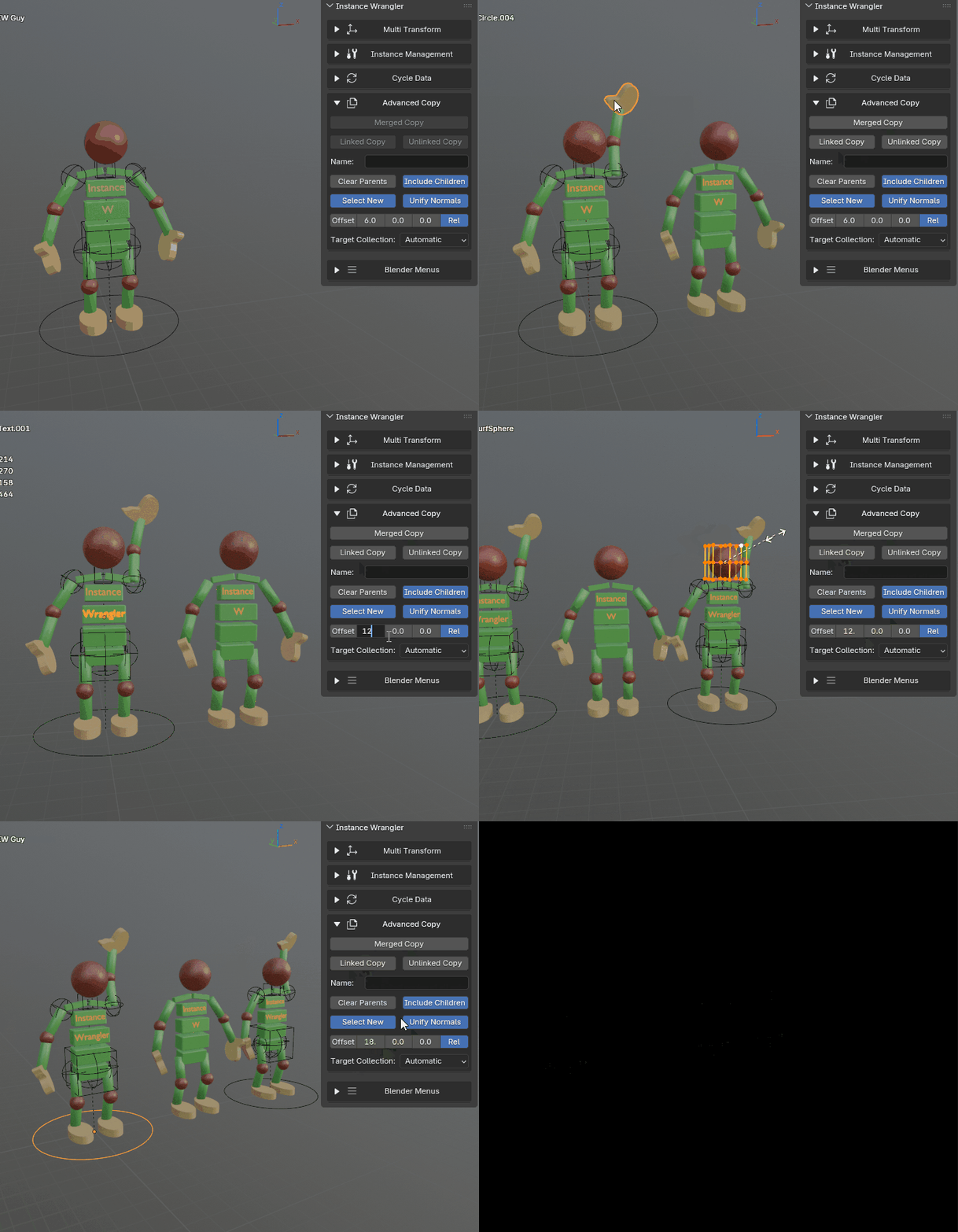
Advanced copy will effortlessly copy or merge any type of object with ultimate control over the newly created object.
Core Operators
Linked Copy & Unlinked Copy
Linked Copy creates new linked duplicates (Alt+D instances) of your selection. It is a non-destructive way to create more instances while keeping them linked to the same underlying object data.
Unlinked Copy creates new unlinked duplicates (Shift+D copies) of your selection. These are simple duplicates which are no longer related to their originals.
Both operators support targeting, Naming, and hierarchy options — see the Common Settings section below.
Merged Copy
The Merged Copy operator creates a single, clean, game-ready mesh from a selection of multiple, potentially diverse objects (meshes, curves, surfaces, grease pencil and text objects). It automates the process of duplicating, converting, joining, and positioning objects. This is ideal for creating simplified proxy models, preparing assets for game engines, or combining parts for 3D printing.
Key behaviors:
All modifiers on source objects are permanently applied (baked) during the merge process.
Objects that cannot be converted to mesh — such as empties, lights, and cameras — are automatically excluded from the result.
The origin of the new merged object is determined by the active object’s world-space location. If no valid active object exists, the origin is set to the center of the new mesh’s bounding box.
Animation: Merged pivot
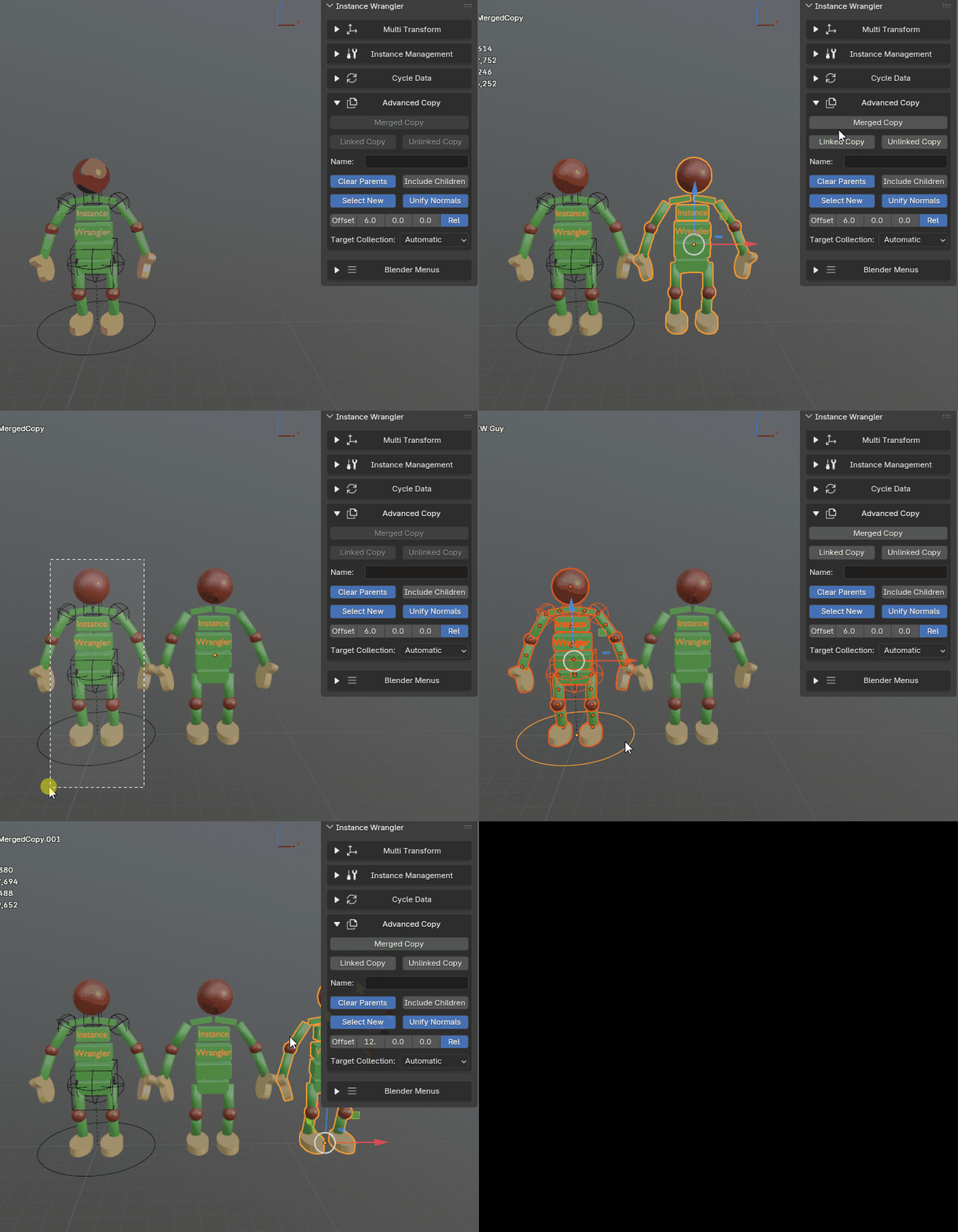
The pivot is determined by the active object or the bounding box center.
Hierarchical Merge (H Merge)
H Merge is a batch variant of Merged Copy designed to handle multiple hierarchies efficiently. When you select multiple hierarchy groups, it creates one merged mesh per top-level parent, using each root’s name and world position to define the result.
Use case: You have ten separate rig groups in your scene, each with dozens of bones and armor pieces. Select all, click H Merge, and get ten optimized proxy meshes — one per rig — ready for export.
Smart Numbering
Every mode will attempt to increment new object names in an elegant way, following the pattern of the source object’s name.
If the source object’s name ends in a number (e.g.
Name_LOD0,object_001), the copy is automatically named by incrementing that number —Name_LOD0becomesName_LOD1,object_001becomesobject_002. If no trailing number is found, Blender’s default naming applies.For merged copies, a
_Mergedsuffix is added. If that name already exists, a numbered suffix is appended (e.g.Cube_Merged.001,Cube_Merged.002).If set name is enabled, Smart Numbering applies as usual as long as the resolved name ends in a number.
Merge Options
These controls appear on the same row and control how merged meshes handle their data. They are only relevant for Merged Copy and H Merge.
- Clean Geometry

When enabled, the operator welds overlapping vertices and removes loose geometry from the merged mesh. Useful for cleaning up complex source selections.
- Unify Normals

When enabled, recalculates the normals of the final mesh to all point outwards. Useful for ensuring consistent shading before export (though Blender’s recalculation is not always perfectly reliable — verify results).
- Keep Target Modifiers

When enabled, if a target object is used, any modifiers on the target are preserved and applied on top of the merged result. This allows you to maintain non-destructive modifier setups on the target while still updating the underlying mesh with new merged geometry.
- UV Merge Mode
Controls how UV channels from different objects are combined during merge:
Merge by Name (default) — keeps original channel names; channels with matching names are merged. Unmatched channels are kept separately (result may have more channels than any input).
Merge by Match — merges by name but discards any channel not present on every object before joining (guarantees no partial UV channels).
Merge by Index — renames all channels by position (UVMap, UVMap.001, etc.) before joining. Channels match by slot number regardless of original names.
Common Settings
Advanced copy operators share a common set of options for controlling the behavior of the copy or merge process. These settings are designed to give you ultimate control over how new objects are created, named, transformed, and organized in your scene.
Apply Multi Transform
When enabled, the Position, Rotation, and Scale values currently set in the Multi Transform panel are applied to the newly created objects immediately after they are created.
ON (Default): Transforms from the Multi Transform panel are applied. Only transform types that are included (via the Pos / Rot / Scale toggles) are applied — disabled types are left as-is.
OFF: The new objects are created at the exact location of the originals (or the merged pivot) without any additional transformation.
Note
For Merged Copy, the transform is applied to the final merged object as a whole — after all source objects have been joined. This means the merged mesh moves as one unit from its pivot point, rather than each source piece being positioned individually before joining.
Include Children
When enabled, the operator will automatically expand your selection to include all (recursive) children of the objects you have selected before running.
For Merged Copy: Requires a selected active object to determine which children to select.
For Linked Copy & Unlinked Copy: Will find the children of all selected objects.
Animation: Include Children
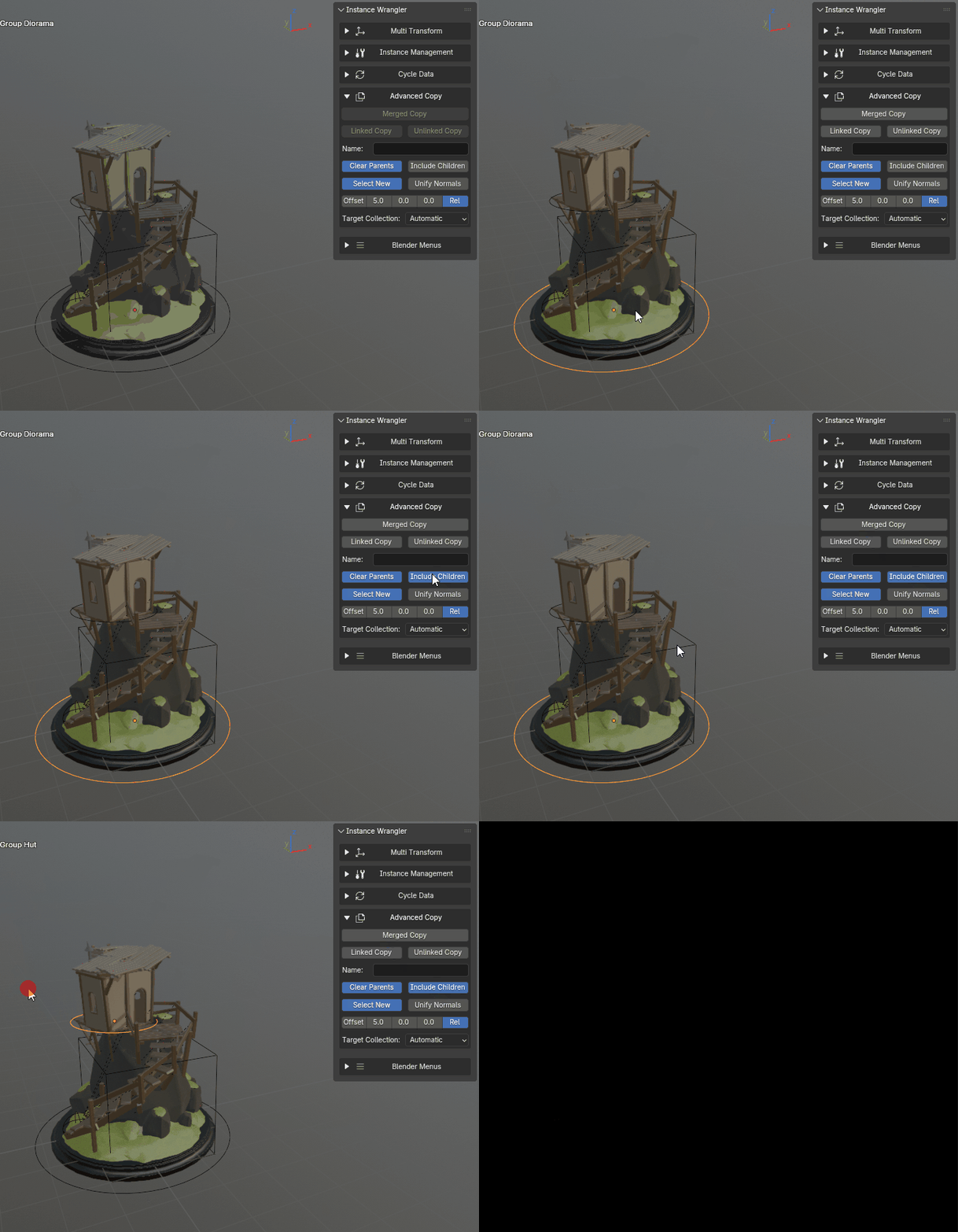
Include children makes it very easy to duplicate hierarchies.
Select New
This toggle controls the final selection state after the operation is complete.
ON (Default): The newly created object(s) will be selected.
OFF: The original selection will be restored.
Skip Active
This option is useful when you want to use the active object as a reference point (pivot) for the operation, but do not want to duplicate the object itself.
- ON: The active object is used to calculate the center of the operation, but is excluded from the final copies.
Parenting Behavior: If Skip Active and Include Children are both enabled, the newly created copies will be automatically parented to the original active object.
OFF (Default): The active object is treated as a normal part of the selection and is copied/merged along with everything else.
Clear Parents
This toggle controls how parent-child relationships are handled for the newly created objects. It behaves differently for each operator.
- For Merged Copy:
ON (Default): The final merged object will have no parent.
OFF: The operator will attempt to re-parent the final merged object to the parent of the original selection (e.g., the parent of the original active object, or a parent common to all selected objects).
- For Linked Copy & Unlinked Copy:
ON (Default): The new duplicates are unparented from each other, creating a ‘flat’ selection of new instances.
OFF: The original parent-child hierarchy is preserved in the duplicated set.
Animation: Clear Parents
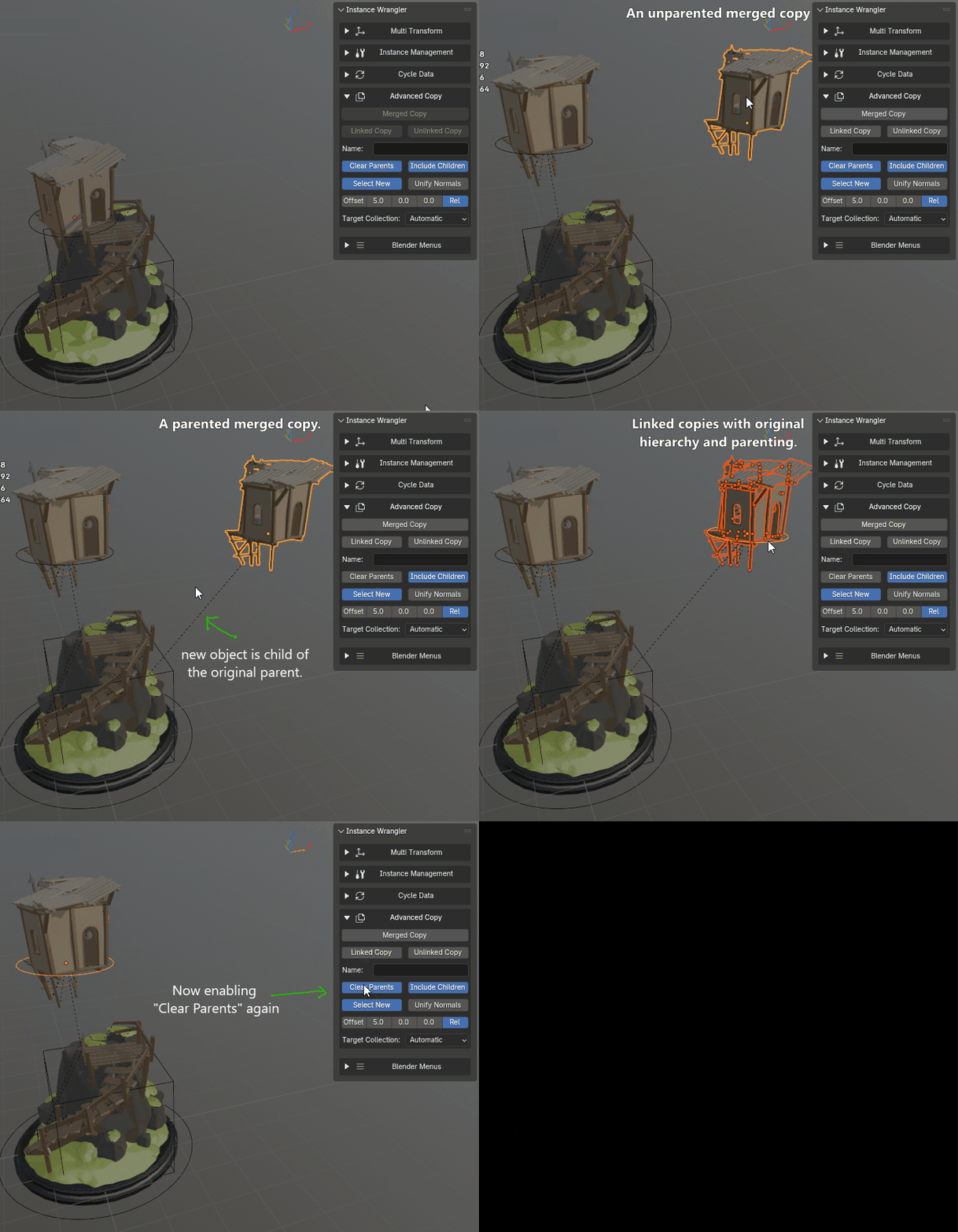
Toggling clear parents will either flatten or maintain a hierarchical structure on new copies.
Target Settings
Target Settings allow you how the new copies or merged meshes are placed in the scene, whether they replace existing objects, which collection they go in to and how the objects are named. These settings work together to give you precise control over the final result of your copy or merge operation.
Target Mode
Targeting allows you to place or merge copies into an existing object or selection instead of creating entirely new objects at the source location.
The Use Target toggle (checkbox) enables or disables targeting. When disabled, all copy operations work directly on the selection without any target object.
When targeting is enabled, three target mode icons appear:
Eyedropper — Manual (Set Target) mode
Magnifying Glass — Auto mode
Select Icon — Selection mode
Manual Target (Set Target)
Before running a copy operation, click the Set Target button (or eyedropper icon) to store the currently active object as the target. Once set, the button shows T: {object name} and an X button to clear the target.
For Linked Copy and Unlinked Copy:
The stored target object is removed from the scene. A new duplicate of the source is created and placed at the target’s world position, inheriting its parent relationship. Only the single stored target is affected — no other objects in the scene are changed.
For Merged Copy:
The merged mesh data-block is swapped into the target object. The target itself is not moved or removed — only its mesh data is replaced. All other objects in the scene sharing that same data-block are automatically updated to use the new mesh, in-place without moving or renaming.
For H Merge:
Not supported. The operator cancels with a warning when a manual target is set.
Use cases:
Replace a specific object in-place with a copy of the source (Linked/Unlinked Copy).
Update a game-ready proxy mesh in-place: adjust your source objects, re-merge into the existing target, and all instances instantly reflect the new geometry (Merged Copy).
Note
The redo/F9 panel is not compatible when a manual target is set. Settings are read from the last values set in the sidebar or popup. Clear Parents has no effect in this mode. The Name field controls the name of the replaced data-block (wildcard * is supported).
Auto Target (Search)
In Auto mode, the operator searches for a target object by name or pattern. The Search field lets you specify what to look for.
Per-Operator Behavior:
- Linked Copy
Replaces each found object with a linked copy of the source at its position. With an empty search, all other objects in the scene sharing the source’s data-block are targeted.
- Unlinked Copy
Replaces the found object with an unlinked copy of the source at its position. With an empty search, the source object’s own name is used as the search term.
- Merged Copy
With an empty search, uses the resolved output name (e.g.
SourceName_Merged) as the search term. For mesh targets: swaps the merged data-block into all objects sharing the old one (all updated in-place). For non-mesh targets: the target object is replaced with a new mesh object.- H Merge
Per hierarchy group, each group independently searches for a target by the root’s name and swaps the merged data-block into all matching instances.
Search Syntax:
Exact Name: Enter the exact name of an object (case-insensitive partial match).
Wildcard
*: Use*as a placeholder for the source object’s name. For example,*_LOD0finds the LOD0 version of each object (e.g.,Cube_LOD0when source isCube).Wildcard
%: Use%as a placeholder for any sequence of characters. For example,Prop_%findsProp_Cube,Prop_001,Prop_Rock, etc.
Multi-Group Handling: When you have multiple hierarchy groups selected, each group targets independently — each root searches for its own target based on its name. This enables merging or replacing multiple hierarchies in one operation:
Linked Copy and Unlinked Copy apply auto-target per group — each root searches independently for its own target (e.g.,
CubefindsCube_Target,SpherefindsSphere_Target).H Merge also applies per group — each hierarchy group’s merged result targets independently.
Use cases:
You updated a spaceship asset by adding child objects to the original, but the other instances in your scene don’t reflect those changes. Leave the search empty and run Linked Copy with Auto Target — all other objects sharing the same data-block are replaced with fresh linked copies of the updated source.
Use a name pattern to replace multiple scene objects with a merged copy of your source in one click — useful for pushing a merged result into a set of existing placeholders.
You have 10 assembled spaceships and matching placeholder meshes named
Spaceship1_LOD0,Spaceship2_LOD0, etc. Select all 10 assemblies, run H Merge with Auto Target, and enter*_LOD0as the search pattern — each assembly is merged and placed at its corresponding placeholder in one operation.
Selection Target
In Selection target mode, the active object’s hierarchy is treated as the source; all other selected hierarchies are treated as targets. Select multiple separate hierarchies, keep one as the active object, and run the copy operation — the result replaces each target hierarchy in-place at its position.
Per-Operator Behavior:
Linked Copy: Creates a new linked copy of the source. Each target hierarchy is removed and replaced with that copy at the target’s position, rotation, and scale.
Unlinked Copy: Creates a new unlinked copy of the source. Each target hierarchy is removed and replaced with that copy.
Merged Copy: Not available in this mode. Use H Merge instead.
H Merge: The source hierarchy is preserved (not merged). A merged copy of the source is created and placed at each target’s world position; the source hierarchy remains in place.
Use cases:
Linked Copy: You have a modular shelf hierarchy and placeholder hierarchies scattered around your scene marking where it should appear. Make the shelf the active object, select all the placeholders, and run Linked Copy with Selection Target — each placeholder is replaced with a linked instance of the shelf at its exact position.
H Merge: You have a detailed vehicle hierarchy and marker hierarchies placed where a merged proxy should go. Make the vehicle the active object, select all the markers, and run H Merge with Selection Target — a merged proxy is placed at each marker’s position while the original assembly stays intact.
Naming
The Name field controls how newly created objects are named. Enable the Set Name checkbox to activate it; when disabled, default naming applies automatically.
Default naming (Set Name off)
Linked Copy & Unlinked Copy: Smart Numbering increments the trailing number in each source object’s name (e.g.
Cube_01→Cube_02). See Smart Numbering above for details.Merged Copy & H Merge: The result is named
{source}_Merged. If that name already exists, Smart Numbering finds the next available slot.
Custom name patterns
Plain text: Used as the name for all new objects. If Smart Numbering is enabled and the name already exists with a trailing number, the next free slot is used instead of letting Blender append
.001.Wildcard
*: Replaced with each source object’s name at copy time. Example:Prop_*_LOD0onCube→Prop_Cube_LOD0. Smart Numbering applies to the final expanded name.
Note
If a wildcard pattern’s prefix or suffix is already present in the source name, the duplicate part is automatically dropped and Smart Numbering is applied instead — preventing names like New_New_Cube (from New_* on New_Cube) or Cube_02_01 (from *_01 on Cube_02).
Manual Target mode (Merged Copy): The Name field applies to the replaced data-block rather than a new object. Wildcard
*is supported. If left empty, the data-block keeps its original name.
Animation: Naming
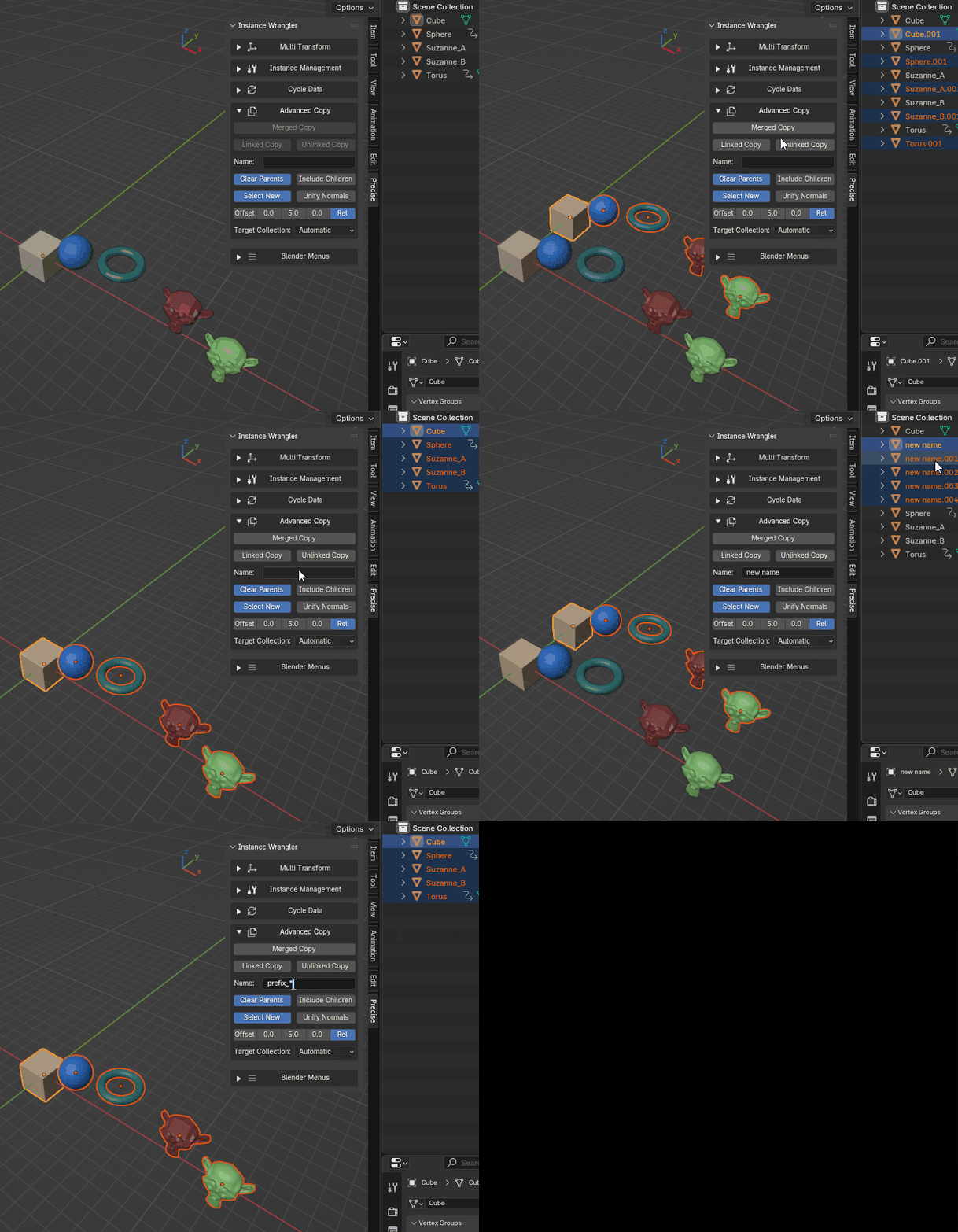
Different ways of setting the name of the newly copied objects.
Target Collection
The Collection checkbox and dropdown control which collection the newly created object(s) are placed in.
- Checkbox off (Default): The operator automatically determines the most logical collection based on your original selection:
For Merged Copy and H Merge, the new mesh is placed in the collection of the original active object (or the Scene Collection if no active object exists).
For Linked Copy and Unlinked Copy, each new duplicate is placed in the same collection(s) as its original counterpart, preserving your scene’s organization.
Checkbox on: The dropdown becomes active — select any collection in the scene to force all new objects into that specific collection.
Animation: Target Collection
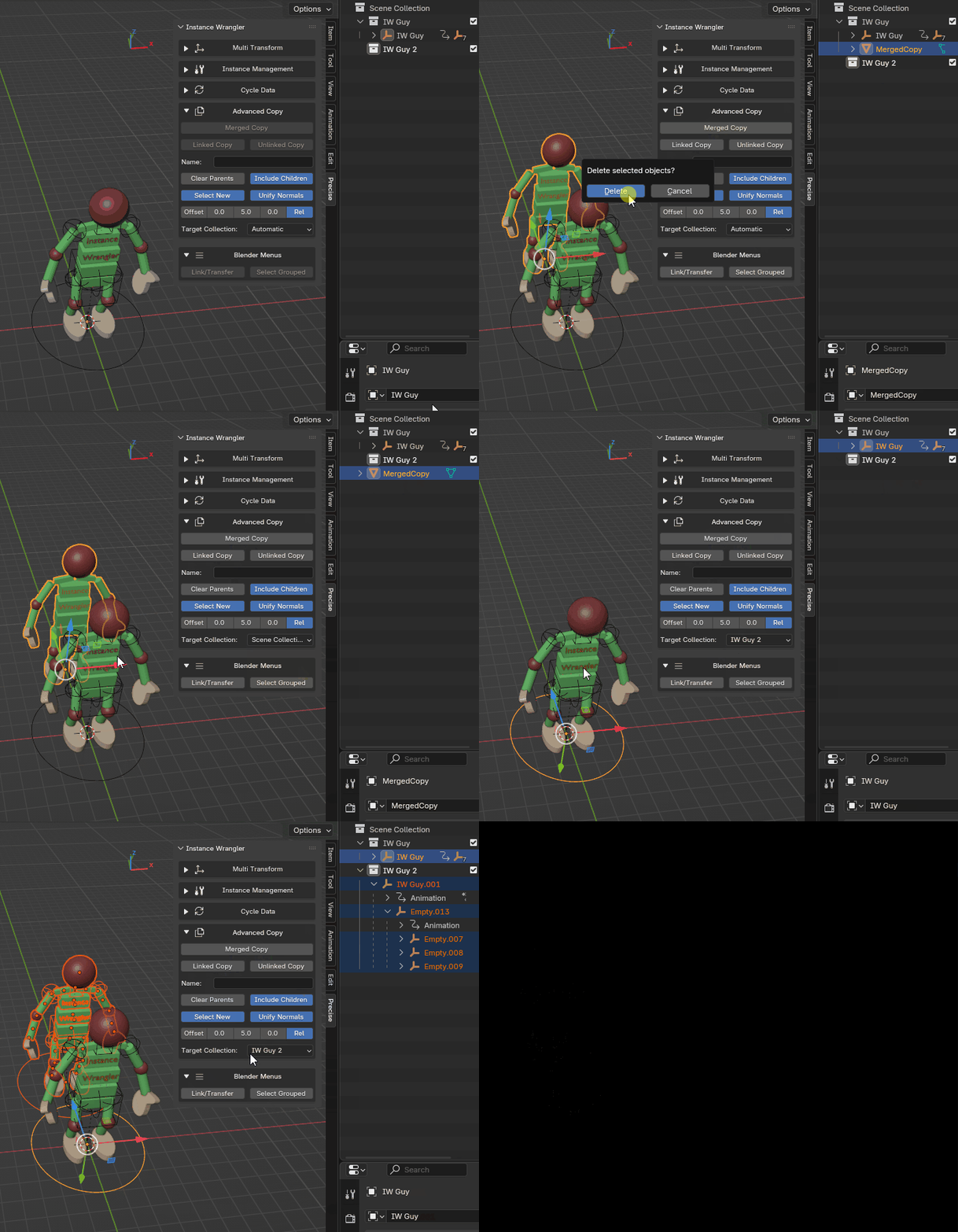
You can target collections for the new copies or handle it automatically in a reliable way.