Multi Transform
The Multi Transform panel provides a powerful and precise way to manipulate the position, rotation, and scale of multiple objects simultaneously. It’s designed for workflows that demand accurate, numeric input, offering a level of control that goes beyond Blender’s standard interactive tools.
The panel is organized into a grid layout, with each row corresponding to a transform axis (X, Y, and Z). This allows you to view and edit the Position, Rotation, and Scale values for a specific axis all in one place. This structure is controlled by a powerful set of modes, allowing for both standard independent editing and an Active Leads Mode which uses the active object as a group pivot.
UI Controls Explained
The panel is organized as a grid. On the left is a column of axis toggles. To the right are three value columns — one each for Position, Rotation, and Scale.
Include Toggles (Pos / Rot / Scale): The top cell of each value column is a toggle button that controls whether that transform type is included in Set All operations. For example, disabling Rot means clicking Set All will only apply Position and Scale, leaving each object’s rotation untouched. These toggles also affect the Apply Multi Transform option in Advanced Copy. The buttons also support modifier keys for quick value operations — see Toggle Buttons below.
Axis Toggles (X / Y / Z): Each row on the left side filters which axes are affected. Disabling Z means the Z-axis value will never be written, regardless of which Set button you click. These buttons also support modifier keys.
Value Fields: The nine input fields in the grid hold the target values for each axis and transform type. Right-click any field for per-cell operations — see Right-Click Menu below.
- Set Buttons: The row below the grid contains the action buttons:
Set All: Applies all included transform types to the selection at once.
Set P / Set R / Set S: Applies only Position, Rotation, or Scale respectively, ignoring the Pos/Rot/Scale include toggles.
- Mode Toggles:
Relative: Switches between Absolute and Relative modes. See Relative Toggle below.
Active Leads: Switches to a mode where the active object acts as a pivot for the selection. See Active Leads Mode below.
Animation: Set All
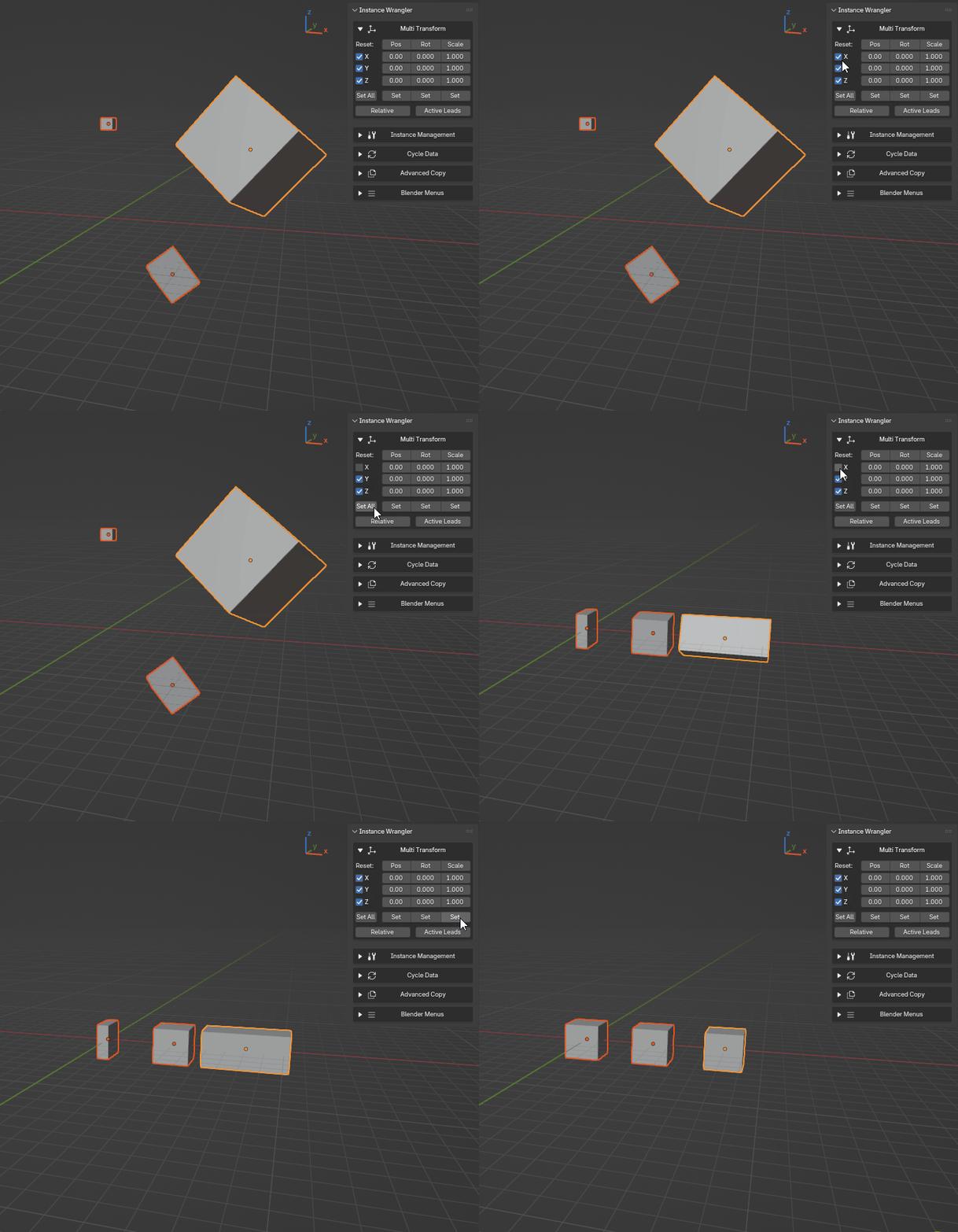
Using Set All to set position, rotation and scale at the same time (IW v1.0).
Toggle Buttons
The six toggle buttons — X, Y, Z (row toggles) and Pos, Rot, Scale (column toggles) — are operator buttons that support modifier keys operating directly on their associated value fields, without changing the toggle state:
- LMB
Toggle — enables or disables the row or column.
- Shift
Round — snaps the associated value fields to the nearest clean step: 0.5 m for Position, 1° for Rotation, 0.1 for Scale.
- Ctrl
Invert — negates the associated values (sign flip for Position and Rotation).
- Alt
Reset — resets the associated value fields to their defaults: Position → 0, Rotation → 0°, Scale → 1.
For the axis row buttons (X / Y / Z), Round / Invert / Reset apply across all three transform types for that axis, but only the columns currently enabled by the Pos / Rot / Scale include toggles are affected.
For the column buttons (Pos / Rot / Scale), Round / Invert / Reset apply to all three values in that column, but only the rows currently enabled by the X / Y / Z axis toggles are affected.
Animation: Toggle button operations
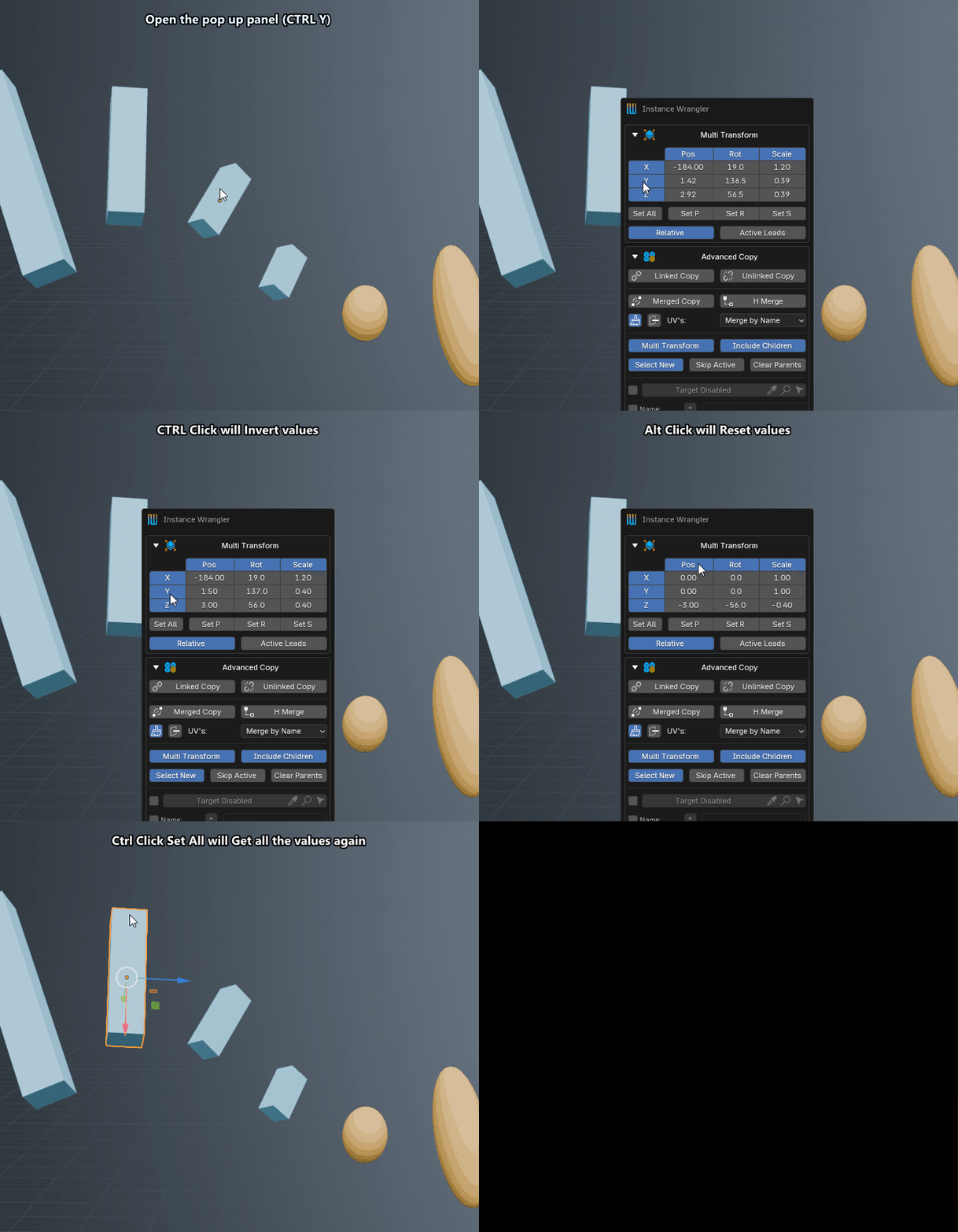
Using various Toggle Button modifier key operations (round, invert, reset) (IW v1.2).
Right-Click Menu
Right-clicking any of the nine value fields opens a context menu with per-cell operations:
Set field to Selection — applies this single value to all selected objects (respects Relative and Active Leads modes).
Get field from Active — reads this single value from the active object into the field.
Round field — snaps the value to the nearest clean step.
Invert field — negates the value.
Reset field — resets the value to its default (0 for Position and Rotation, 1 for Scale).
Animation: Right-click menu
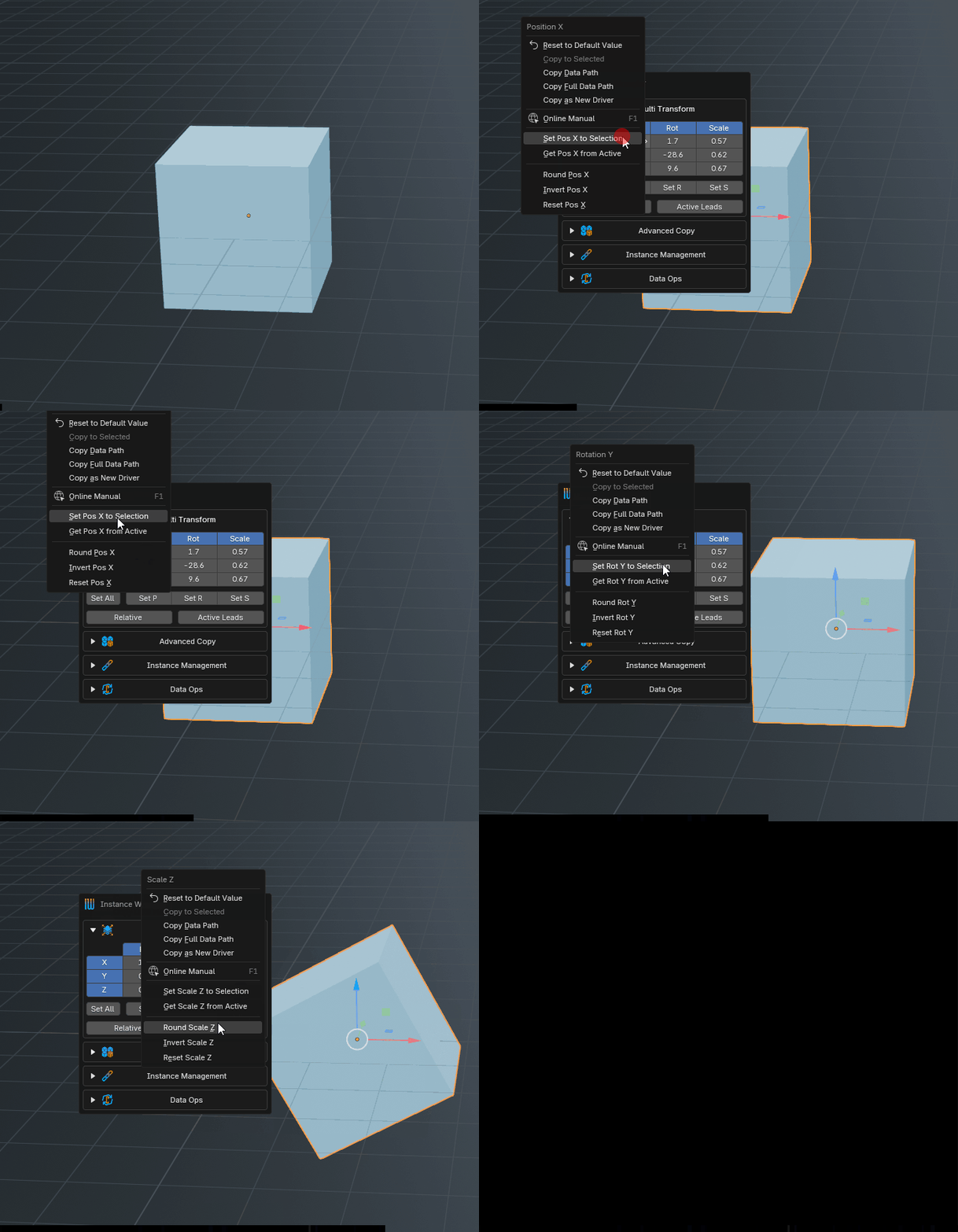
Using per-cell operations in the right-click menu (IW v1.2).
Relative Toggle
The Relative toggle lets you switch between relative and absolute transform mode.
- Absolute Mode (
Relativedisabled): This mode sets the transform values to the exact numbers you enter. It’s perfect for aligning objects to a specific coordinate. Example: To align all selected objects to a height of 5 meters, you would disable
Relative, enter5.0in the Z position field, and click Set.
- Absolute Mode (
- Relative Mode (
Relativeenabled): This mode adds (or multiplies for scale) the entered values to each object’s current transform. It’s ideal for nudging a selection of objects while preserving their existing arrangement. Example: To move all selected objects 2 units to the right, you would enable
Relative, enter2.0in the X position field, and click Set.
- Relative Mode (
Animations: Position, Rotation & Scale
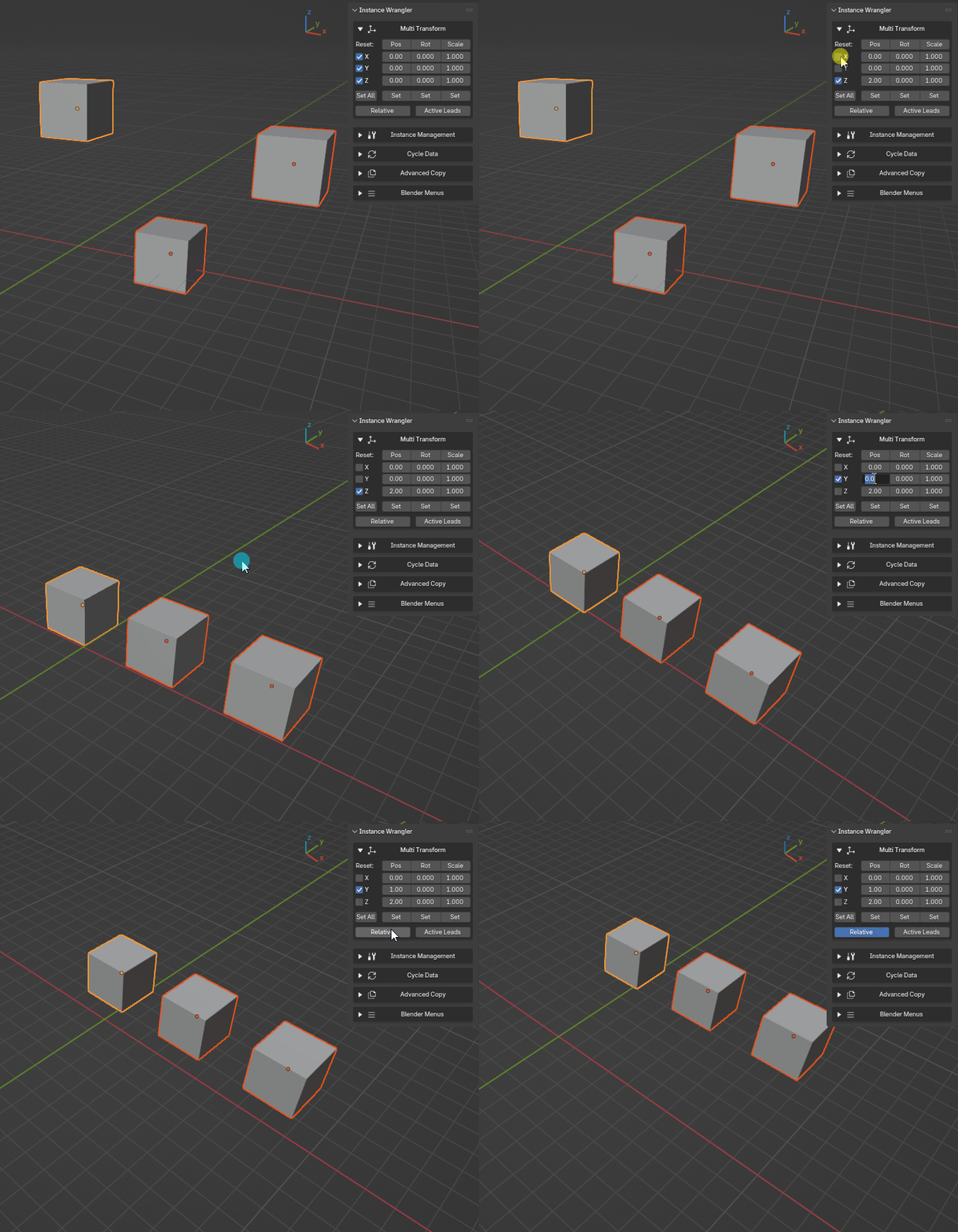
Setting the position in absolute and relative mode and using the axis rows (IW v1.0).
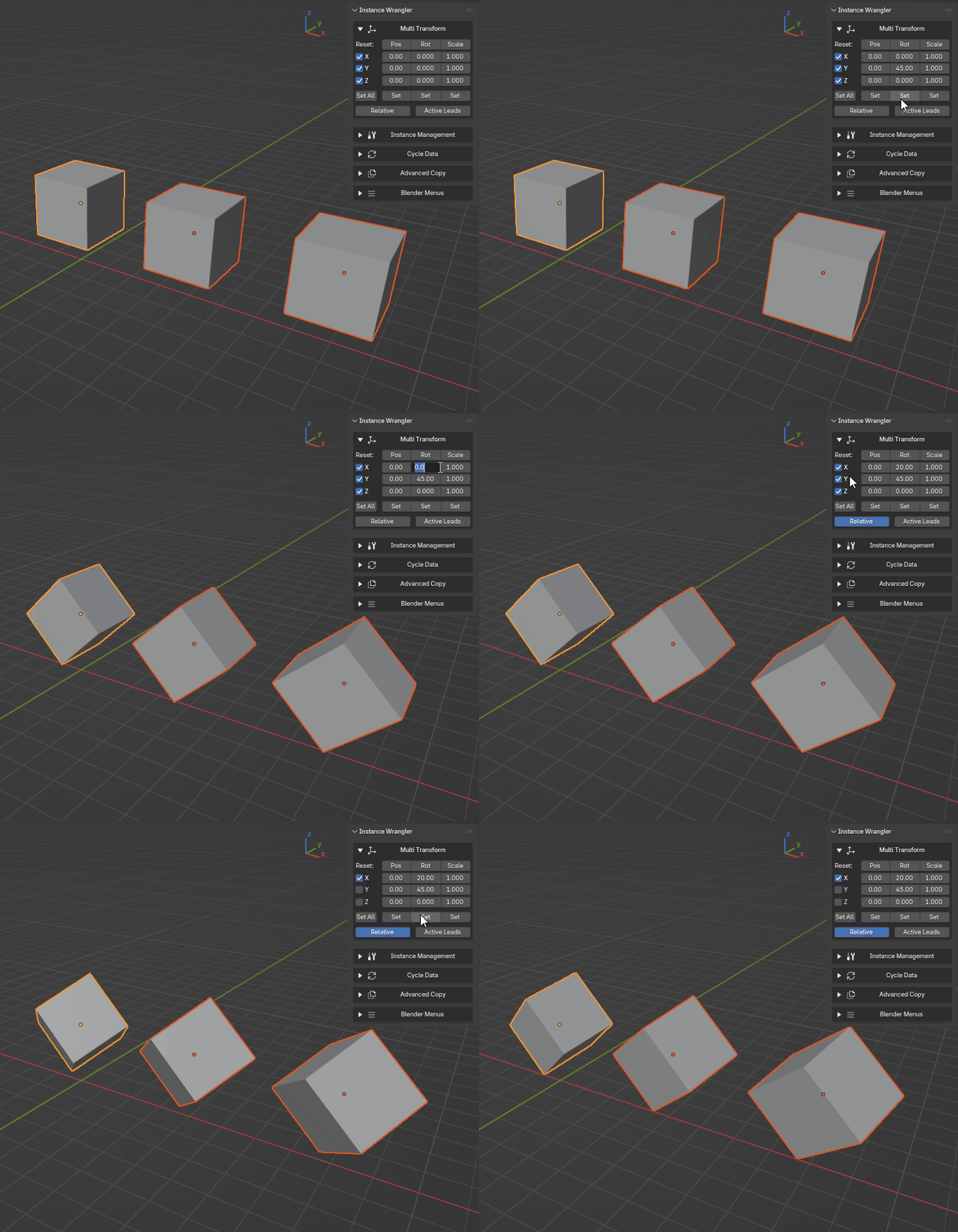
Setting the rotation in absolute and relative mode and using the axis rows (IW v1.0).
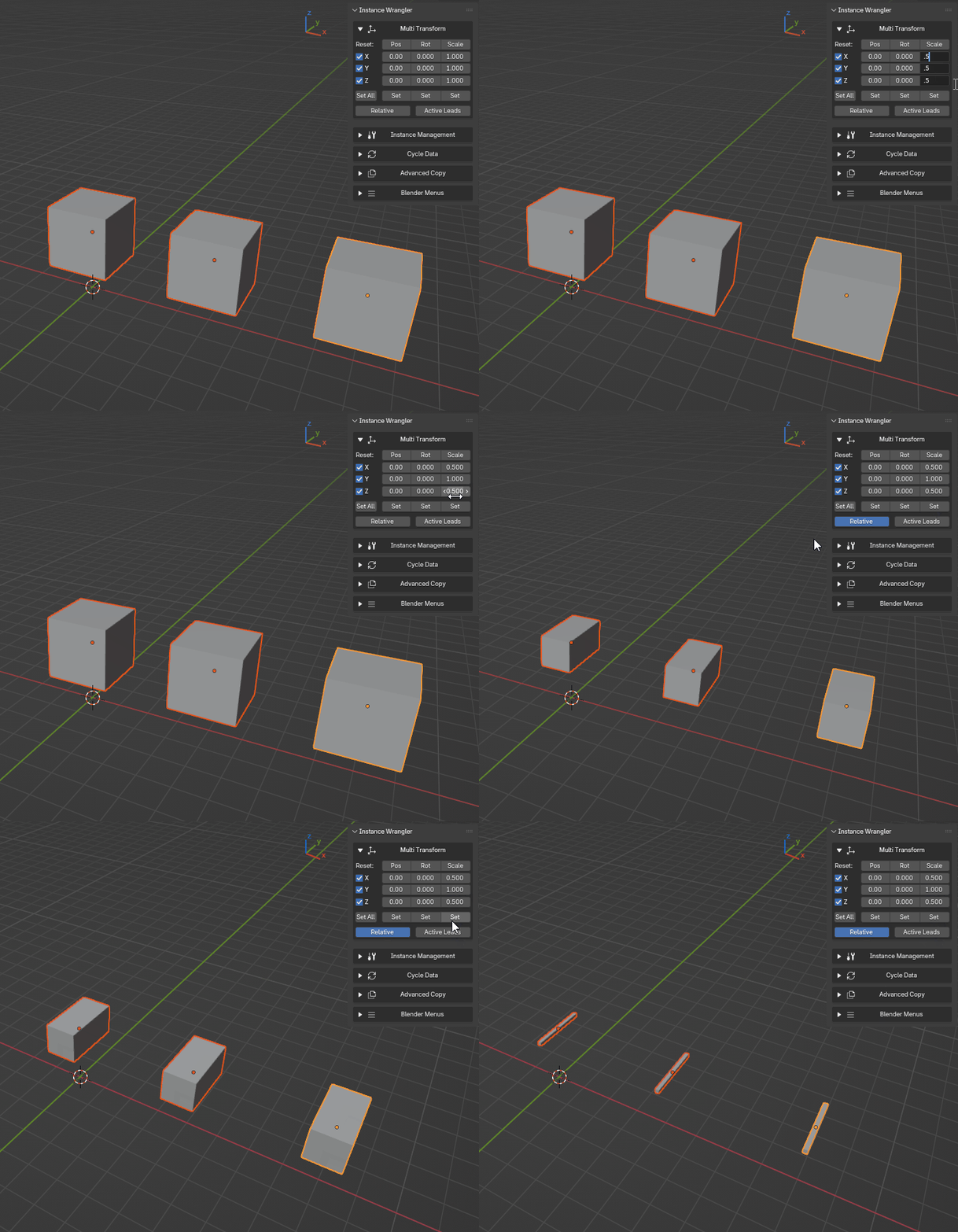
Setting the scale in absolute and relative mode and using the axis rows (IW v1.0).
Active Leads Mode
Enabling Active Leads makes the active object the pivot point for the entire selection, like a lead dancer guiding their partners.
Position: The entire group moves rigidly to place the active object at the target coordinates.
Rotation: Followers orbit around the active object as it rotates to its new orientation.
Scale: The active object is scaled by the specified factor, and all followers scale with it, moving further from or closer to the leader proportionally.
Relative Toggle: offers a lot of flexibility in Active Leads mode.
Relative Mode Off (Absolute Mode): You are setting an absolute target for the leader, and the followers will arrange themselves around it.
Relative Mode On: In this mode, the UI values represent an incremental change that is applied to the active object, and the followers move with it in a parented fashion with each click.
Animations: Active Leads
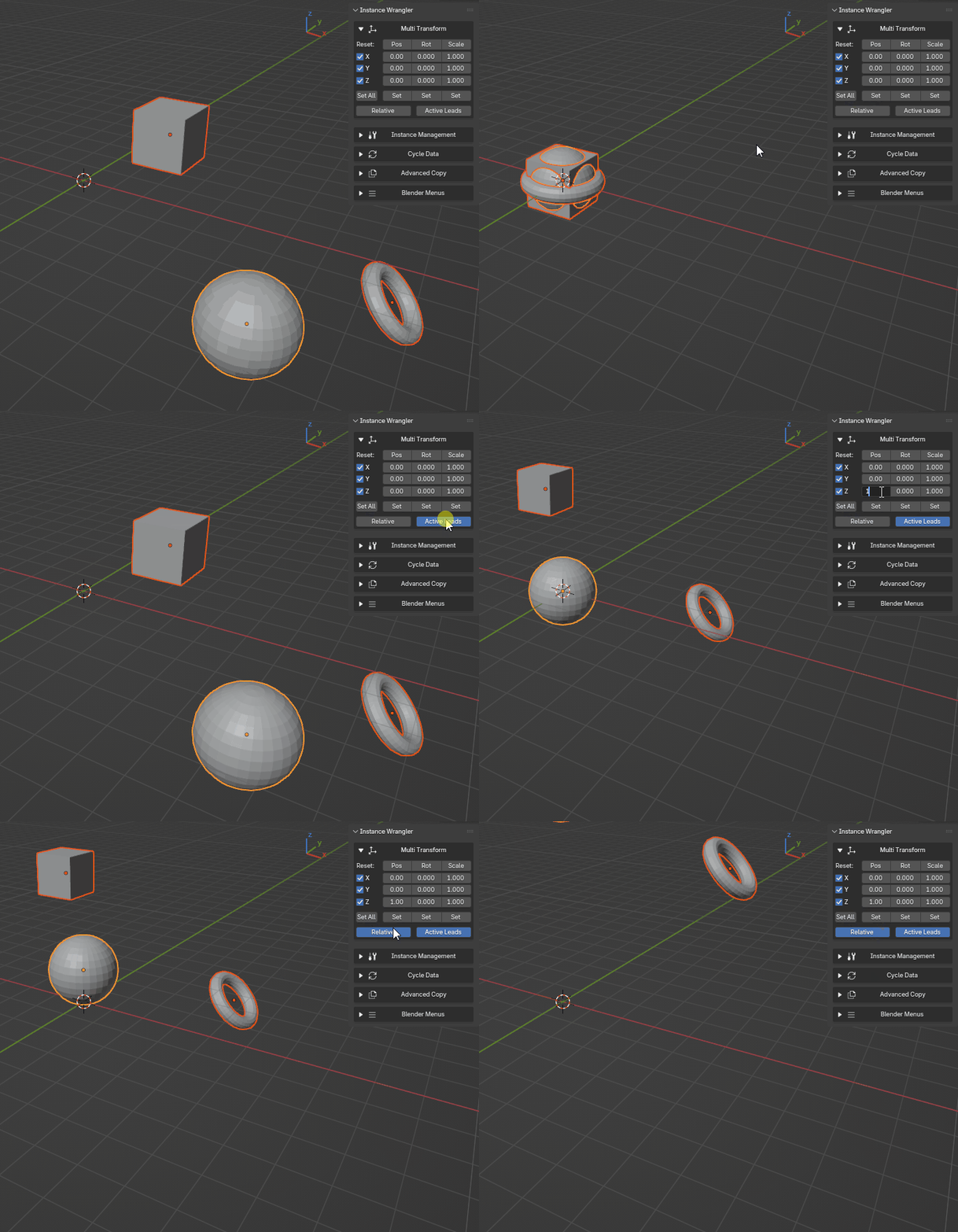
Use Active Leads to move objects as a group, using the active object as the group pivot (IW v1.0).
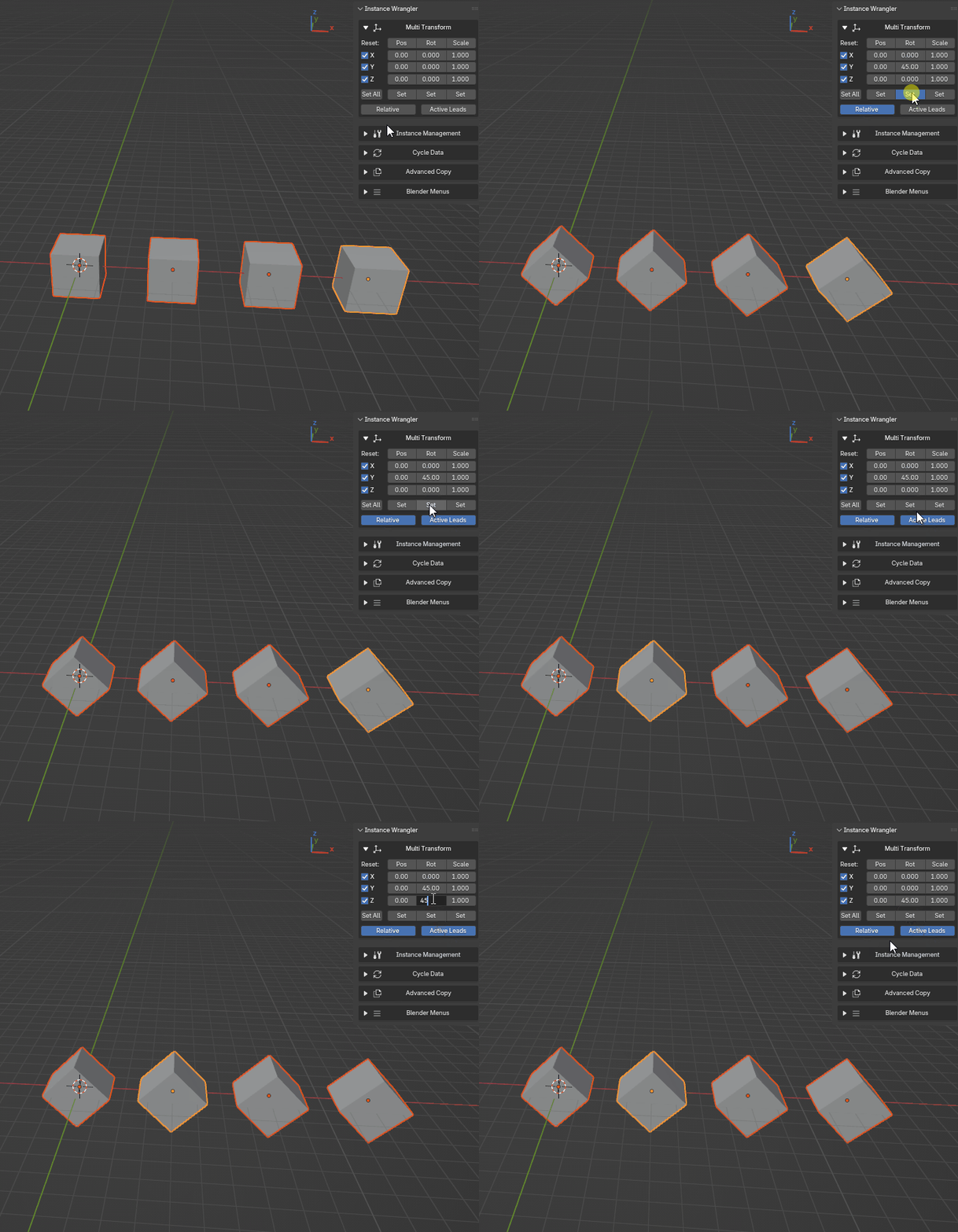
Use Active Leads to rotate objects as a group, using the active object as the group pivot (IW v1.0).
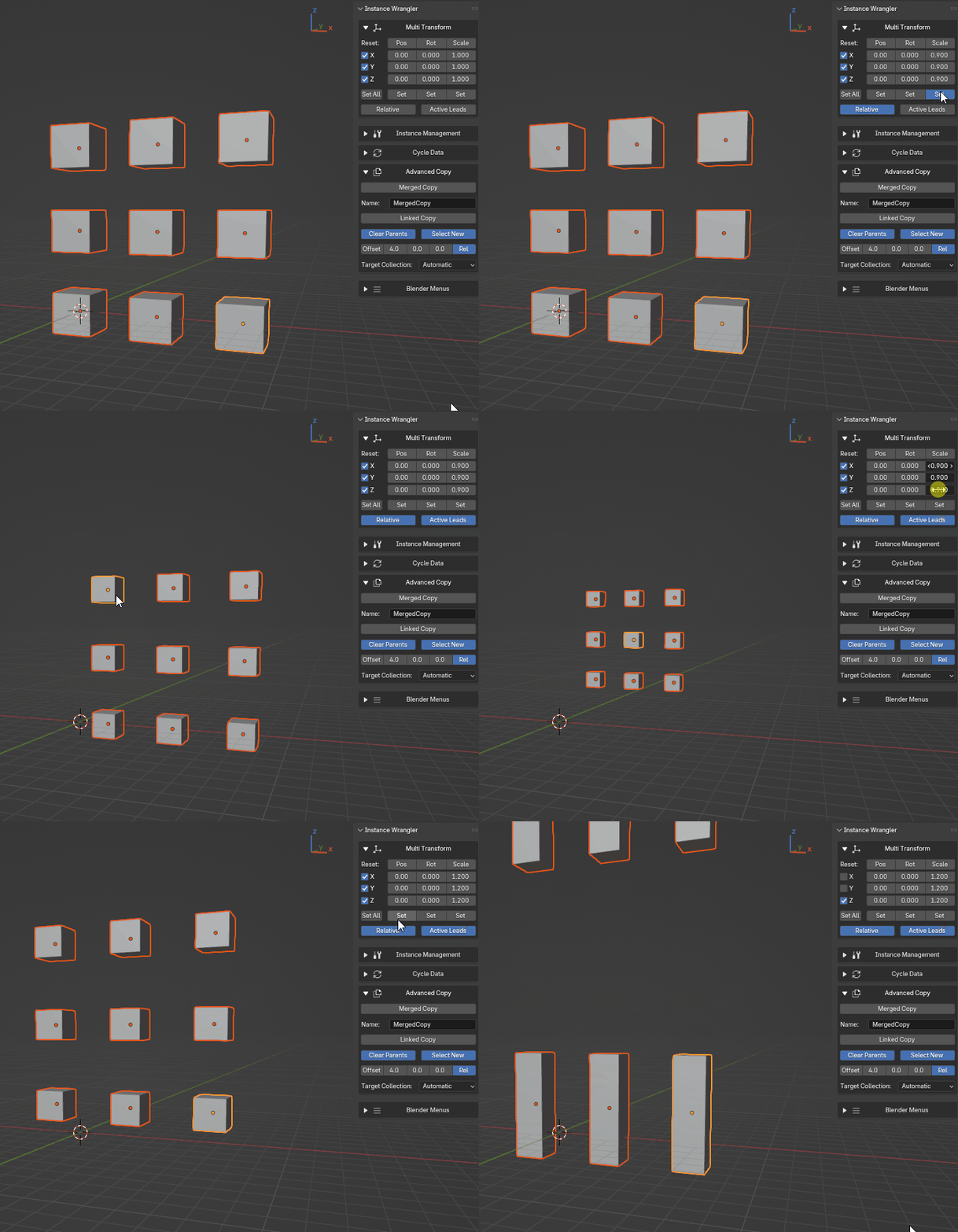
Use Active Leads to scale objects as a group, using the active object as the group pivot (IW v1.0).