Using the Addon
This page covers how to install Instance Wrangler and the different ways you can access its tools once it is installed.
Installation
Open Blender.
Navigate to Edit > Preferences.
Navigate to the Add-ons tab.
Click the downward-pointing arrow in the top right and choose Install from Disk.
Select the Instance Wrangler
.zipfile you downloaded from the store platform.Instance Wrangler will now appear in the add-ons list — make sure its checkbox is enabled.
Accessing the Tools
Animation: The User Interface
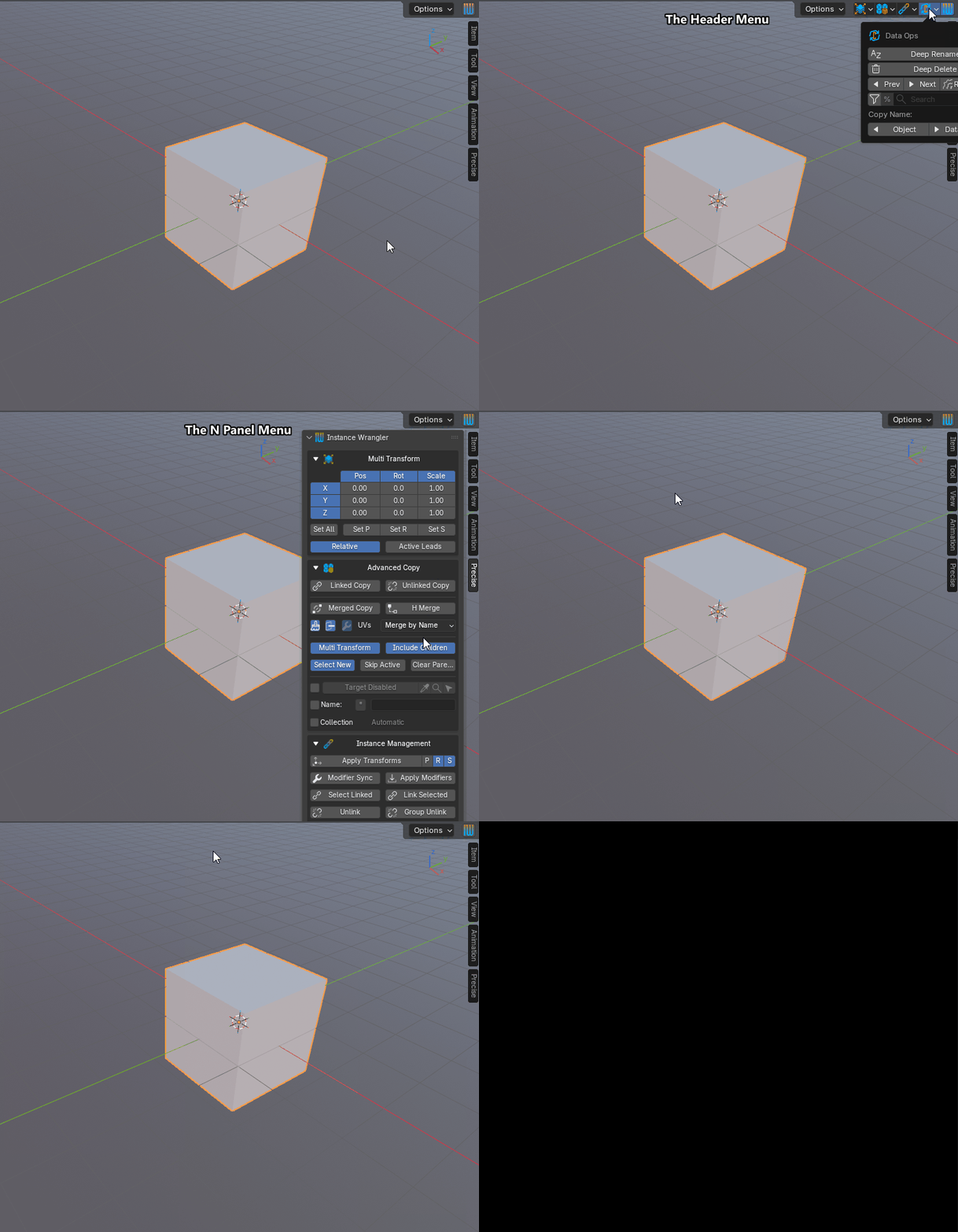
The different areas of the Instance Wrangler user interface.
Instance Wrangler’s tools are available from four different locations. All of them share the same operators, so you can use whichever fits your workflow.
Header Toolbar
The IW logo button is permanently present in the 3D Viewport’s tool header — the same bar as the transform orientation dropdown, pivot point, and snap controls. Click the logo to expand the toolkit buttons inline. Each button opens a floating panel with the same layout as the corresponding N-panel section.
Redo Panel (F9)
After running any operator, press F9 or expand the Last Operator panel in the viewport’s bottom-left corner to adjust its settings. Most operators record their options here — for example, Multi Transform records axis toggles and values, and Advanced Copy records all placement and naming settings.
Preferences
Open the addon preferences via Edit > Preferences > Add-ons, find Instance Wrangler, and expand its entry. The preferences contain two sections.
Toolset Management
Each of the five toolsets (Multi Transform, Advanced Copy, Instance Management, Data Cycler, Blender Menus) has four controls in the preferences table:
- Order:
The position of the toolset relative to the others. Use the up/down arrows to reorder. Lower numbers appear higher in the panel.
- N-Panel:
Whether the toolset is shown in the N-panel sidebar. Disable to hide a toolset you don’t use.
- Popup:
Whether the toolset is shown in the Ctrl+Y popup menu.
- Expanded:
Whether the toolset starts expanded or collapsed when opening a new scene.