Cycle Data
The Cycle Data tool is a powerful feature for rapid iteration and asset swapping. It allows you to replace an object’s underlying Object Data (like its mesh or curve geometry) with another data-block of the same type available in your Blender file.
Think of it as quickly trying on different versions of an asset without ever moving the object itself. The object’s location, rotation, scale, and even its modifiers are all preserved; only its core data is swapped.
How It Works
When you click Next, Prev, or Random, the tool collects all data-blocks of the same type as the selected object(s) from your .blend file, sorts them alphabetically, applies any active Filter, and swaps each object’s data to the chosen entry. Each selected object cycles independently within its own type.
The Next/Prev cycle behavior depends on the filter mode (see Filter Modes below).
Animation: Cycle Data
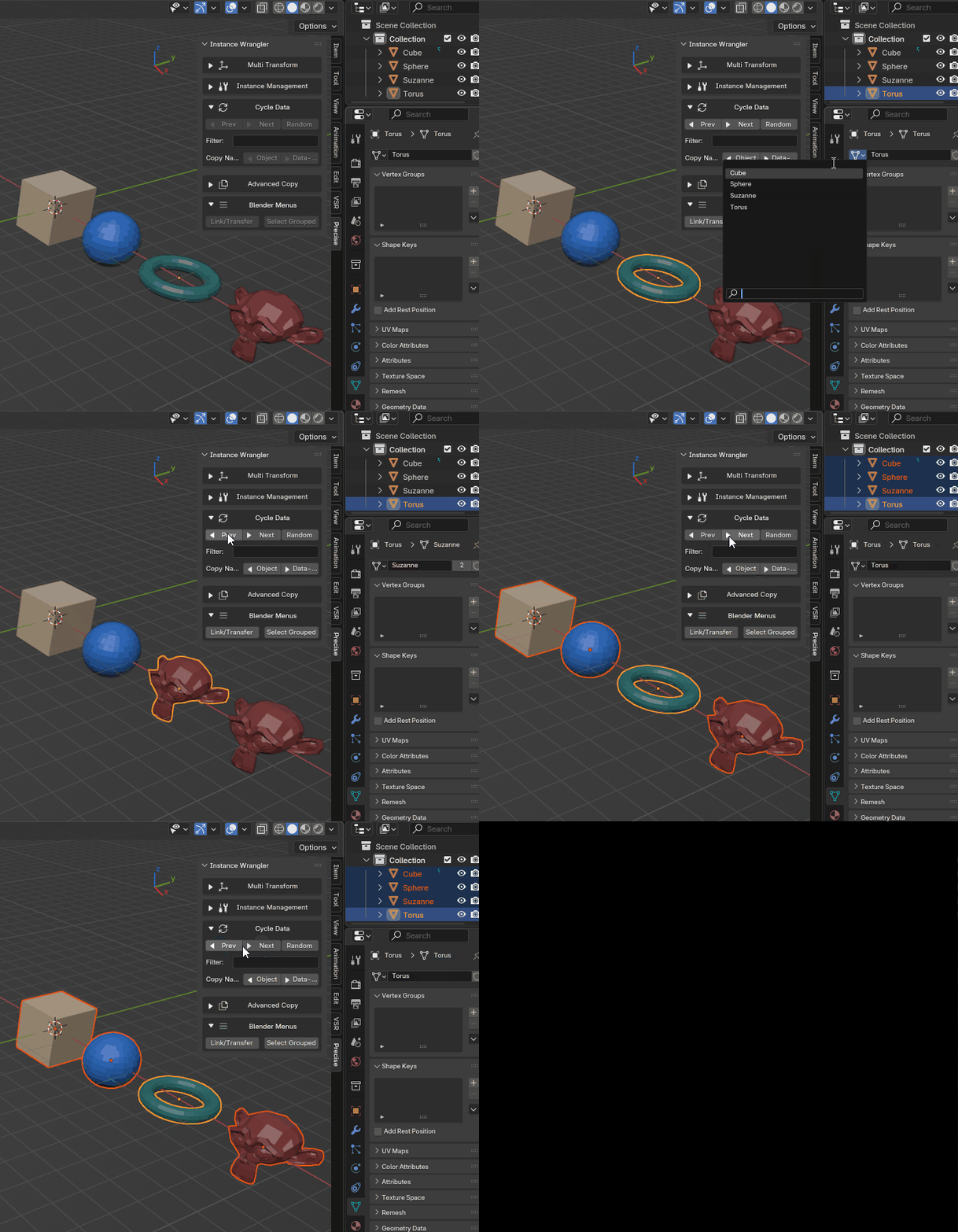
Cycling through object data on one or more objects.
How to Use
The basic workflow:
Select one or more objects you wish to change (the tool also works on children if enabled).
Optionally enable Filter and enter a filter pattern to narrow your choices.
Click Next, Prev, or Random to change the data.
You can select multiple objects at once, even of different types. Each object will cycle independently within its own category and respects the Include Children setting.
Settings and Controls
- Include Children
When enabled (default: on), the cycle operation also applies to all children of selected objects, recursively walking the entire hierarchy. When disabled, only the directly selected objects are affected.
Example: Select a rig root and click Next — the tool cycles data for the root and every bone/child object in the hierarchy.
- Filter Toggle
Enables or disables the filter field. When off, the tool cycles through every data-block of the same type. When on, the filter narrows the candidates.
- Filter Field
A text pattern that narrows which data-blocks are available to cycle through. Supports plain substring matching or group-based cycling using
%. See Filter Modes below for details.
Filter Modes
The filter works in two distinct modes depending on whether you use the special % character.
Plain Text Mode (No %)
Type any text to filter by substring matching. The filter is case-insensitive and matches any data-block whose name contains your text.
Candidate pool: all blocks matching the substring
Cycle behavior: Wraps around — clicking Next on the last block cycles back to the first
Examples:
Filter:
LODmatches all blocks namedCube_LOD0,Cylinder_LOD2,Tree_LOD1, etc. All three objects cycle through the entire shared pool.Filter:
RockmatchesRock_001,Rock_002,My_Rock, etc.Filter:
v2matchesChar_v2,Prop_v2,Asset_v2— all data containing the substring.
Group Mode (With %)
Use % as a placeholder to define separate cycling groups per object. Each object cycles within its own group based on the part of the name that varies.
%marks the variable part of the naming patternEach object groups candidates based on its current data name
Cycle behavior: Clamps at both ends — clicking Prev at the first option stays there (doesn’t wrap)
This is ideal for Levels of Detail (LODs) or versioned assets where each base object should have its own set of variants.
Examples:
Pattern: ``_LOD%``
- Suppose you have:
CubeusingCubeMesh_LOD0CylinderusingCylinderMesh_LOD0Available blocks:
CubeMesh_LOD0,CubeMesh_LOD1,CubeMesh_LOD2,CylinderMesh_LOD0,CylinderMesh_LOD1,CylinderMesh_LOD2
- When you click Next on
Cube: It cycles through only
CubeMesh_LOD0 → LOD1 → LOD2It does NOT cycle to
CylinderMesh_*(separate group)Clicking Prev on
LOD0stays atLOD0(clamping, no wrap)
Pattern: ``_v%``
- Blocks named
Prop_v1,Prop_v2,Prop_v3,Asset_v1,Asset_v2: Propobjects cycle throughv1 → v2 → v3Assetobjects cycle throughv1 → v2Each object stays within its own version group
Filter Examples
Auditioning a single variant type:
Filter: _LOD0 → cycle through only LOD0 meshes across your scene. Useful for checking low-poly coverage.
Browsing versions of one asset:
Filter: Prop_ → cycle through all versions of Prop_* blocks. Other assets are excluded.
Random button with filtering:
Select ten objects, set filter to Rock_, and click Random → each object gets a random rock variant. The Random button respects both plain text and group mode filters, and avoids assigning an object its current data-block.
Animation: Filter
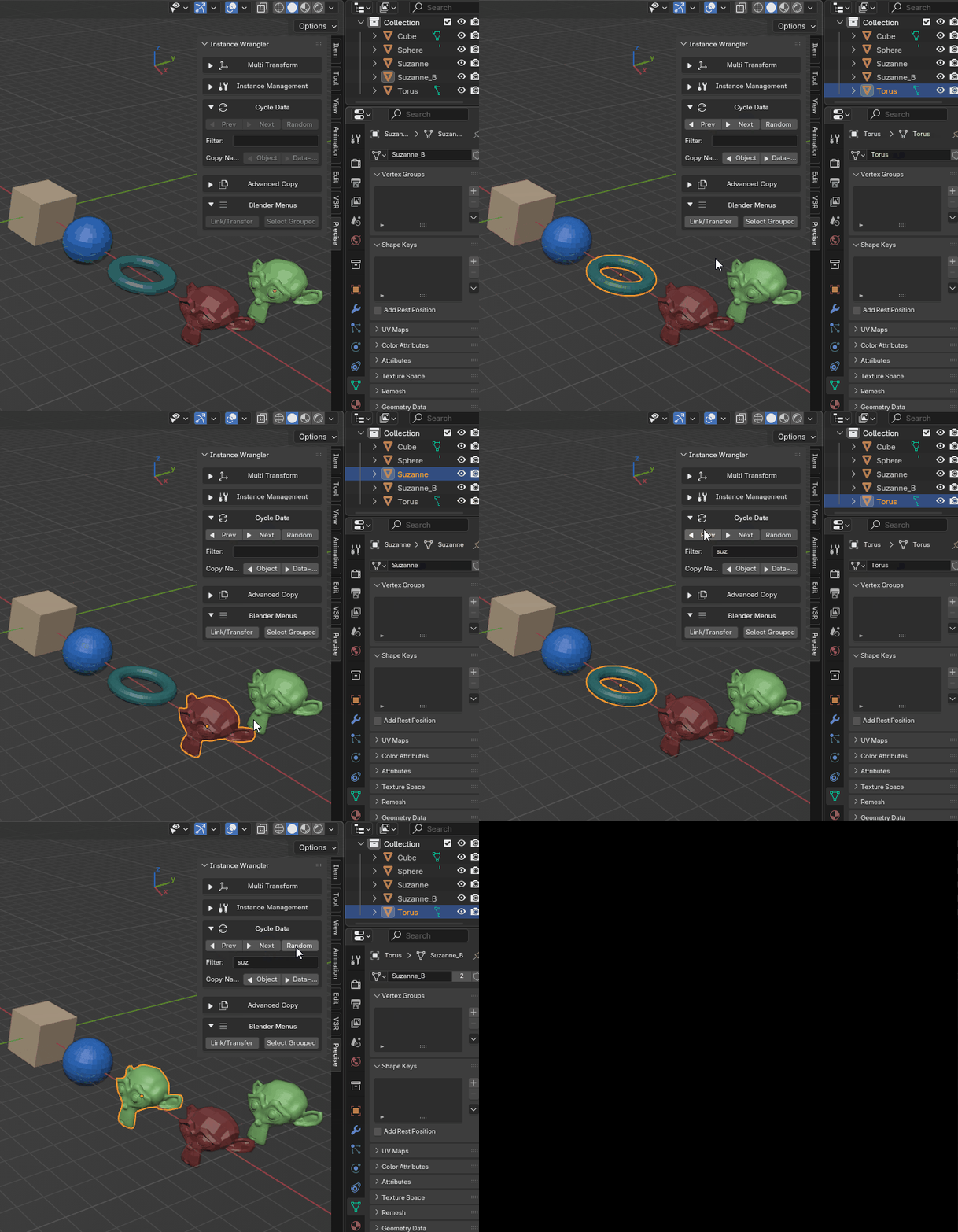
Using a filter to limit the range of cycled objects.
Example Workflows
- Auditioning Assets
This tool is invaluable for tasks like set dressing. If you have a
Tree_Placeholderobject, you can select it and click Next repeatedly to cycle through all available tree models (Tree_Oak,Tree_Pine, etc.) to see which one fits best in your scene.
Animation: Auditioning assets
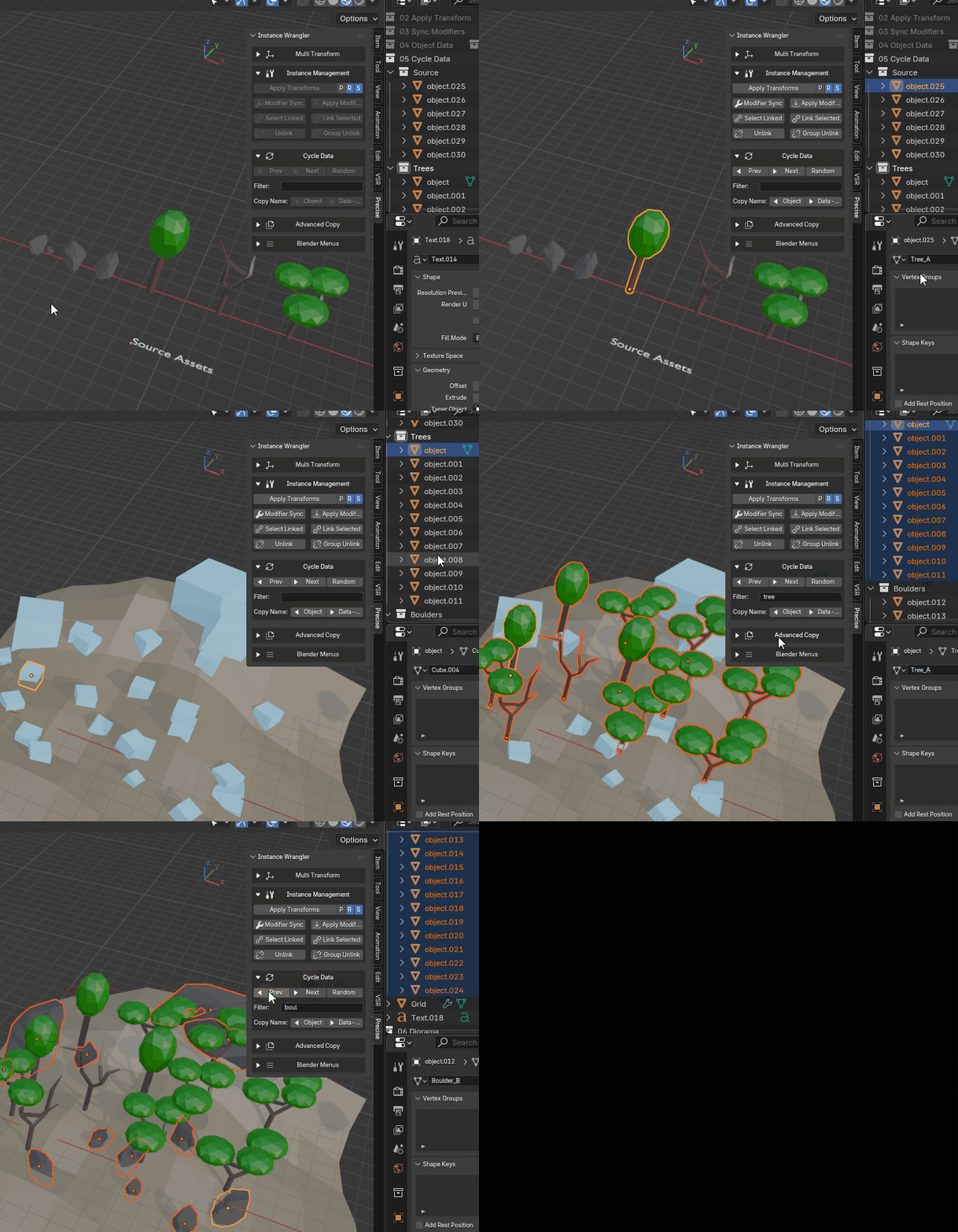
Auditioning trees and rocks and using the randomize and filter functionality.
- Swapping Levels of Detail (LODs)
This tool is also ideal for managing LODs. If your assets are named alphabetically (e.g.,
MyAsset_LOD0,MyAsset_LOD1), you can select all_LOD0instances and click Next to switch them all to_LOD1instantly. You can also use the Filter field: typingLOD2and clicking Next will jump all selected objects directly to their_LOD2version.