Advanced Copy
The Advanced Copy section provides three powerful operators for creating new objects from your selection: Merged Copy, Linked Copy, and Unlinked Copy.
Merged Copy is used to create a single, new mesh from a potentially diverse selection of objects.
Linked Copy is used to create new linked duplicates (instances) of your selection, with advanced options for placement and hierarchy.
Unlinked Copy is used to create new unlinked duplicates (copies) of your selection, with advanced options for placement and hierarchy.
All three operators share a set of common options for controlling the placement, parenting, collection, and final selection state of the newly created objects.
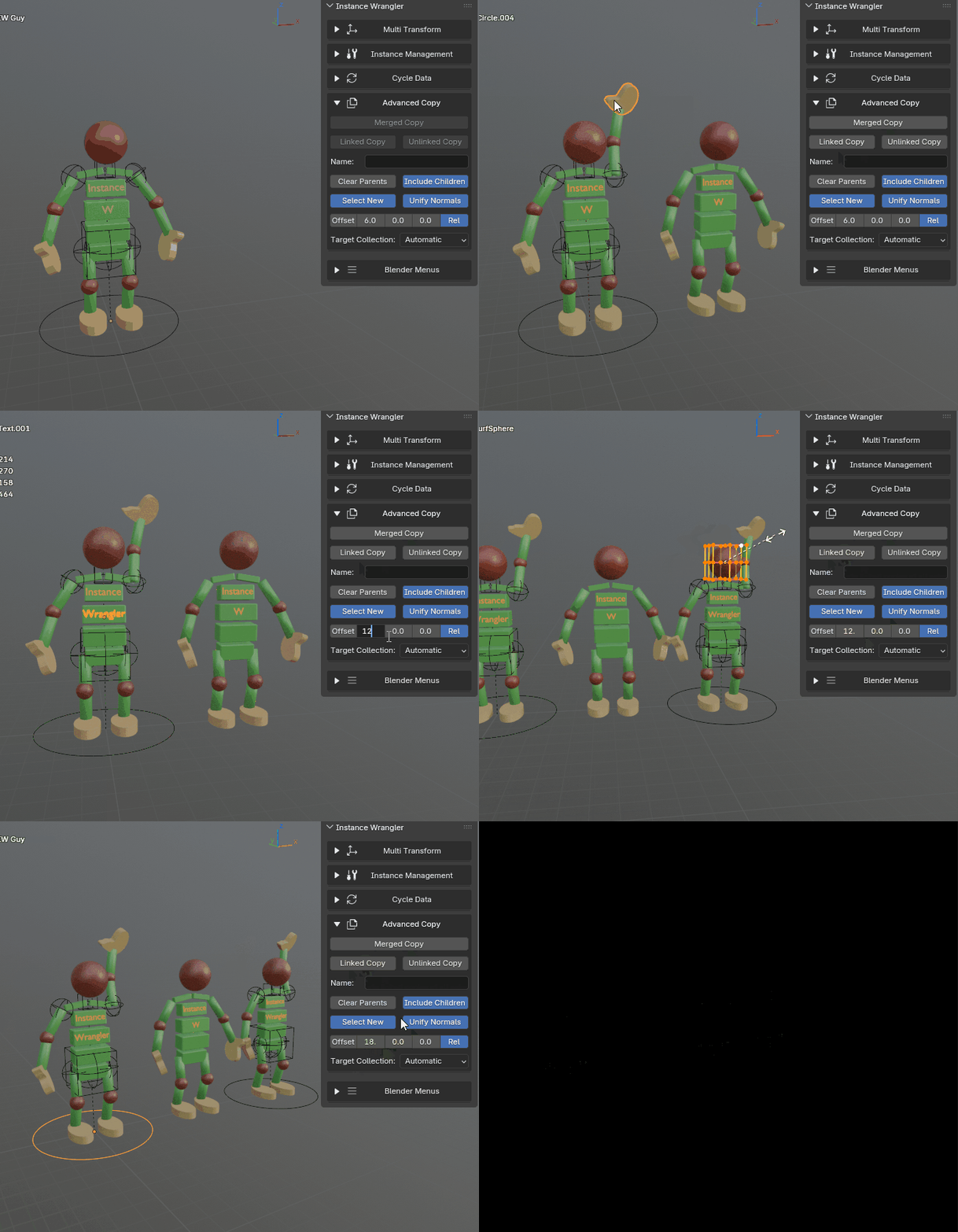
Advanced copy will effortlessly copy or merge any type of object with ultimate control over the newly created object.
Merged Copy
The Merged Copy operator is a comprehensive tool for creating a single, clean, game-ready mesh from a selection of multiple, potentially diverse objects (meshes, curves, surfaces, text objects and grease pencil objects). It automates the process of duplicating, converting, joining, and positioning objects. This is ideal for creating simplified proxy models, preparing assets for game engines, or combining parts for 3D printing.
Its behavior is controlled by its unique options and the settings in the Common Options section below.
Defining the Origin (Pivot Point)
The origin of the new merged object is determined by your selection:
If you have a valid active object in your selection, its world-space location is used as the pivot point.
If there is no valid active object, the origin is set to the center of the new mesh’s bounding box.
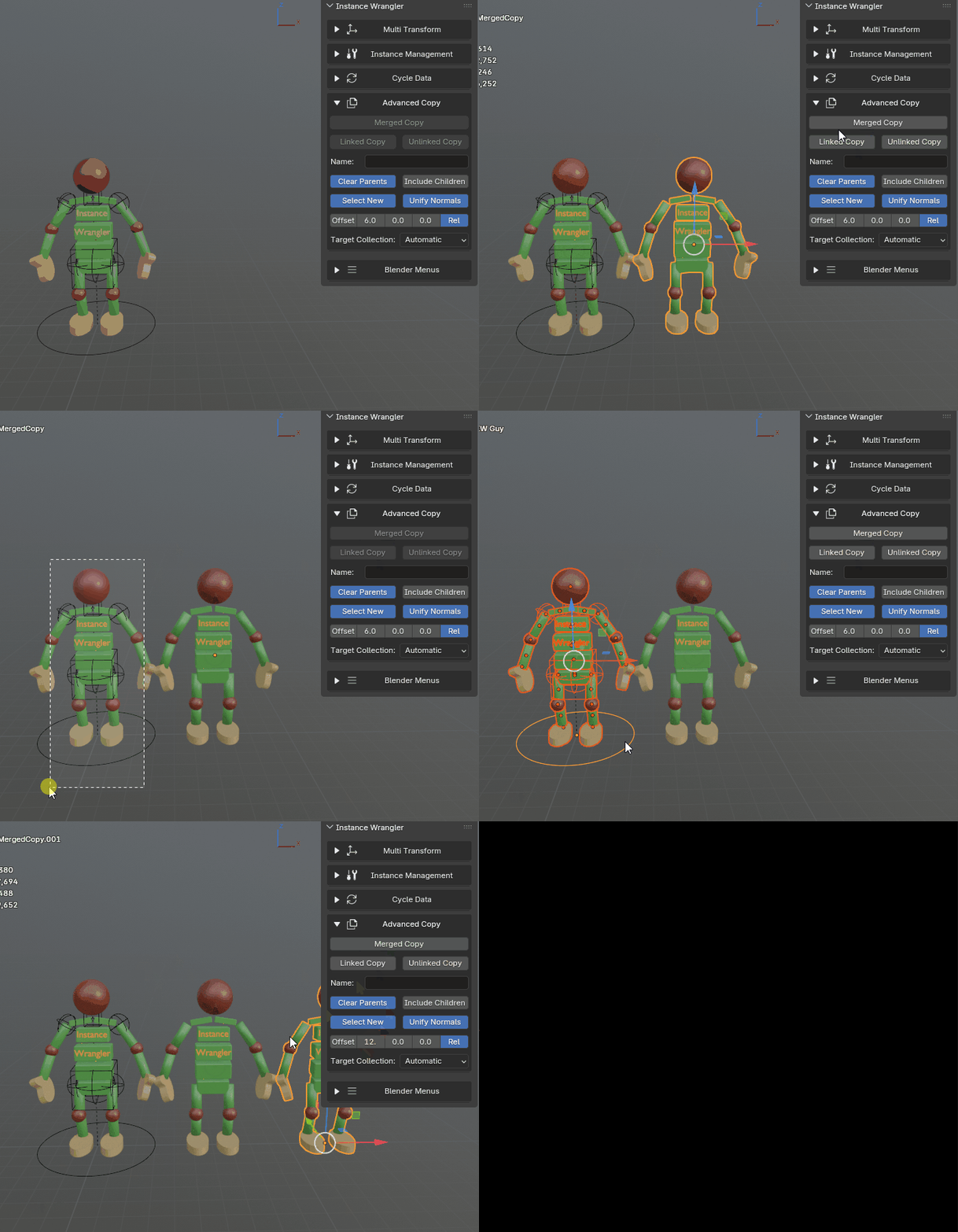
The pivot is determined by the active object or lack thereof.
Linked Copy & Unlinked Copy
The Linked Copy operator creates new linked duplicates (Alt+D instances) of your selection. It is a non-destructive way to create more instances while keeping them linked to the same underlying object data.
The Unlinked Copy operator creates new unlinked duplicates (Shift+D copies) of your selection. These are simple duplicates which are no longer related to their originals.
The behavior of both operators is controlled entirely by the settings in the Common Options section below.
Advanced Copy Settings
Apply Multi Transform
Advanced Copy now integrates directly with the Multi Transform panel to handle position, rotation and scaling.
ON (Default): The Position, Rotation, and Scale values currently set in the Multi Transform panel will be applied to the newly created objects immediately.
OFF: The new objects are created at the exact location of the originals (or the merged pivot) without any additional transformation.
Skip Active
This option is useful when you want to use the active object as a reference point (pivot) for the operation, but do not want to duplicate the object itself.
- ON: The active object is used to calculate the center of the operation, but is excluded from the final copies.
Parenting Behavior: If Skip Active and Include Children are both enabled, the newly created copies will be automatically parented to the original active object.
OFF (Default): The active object is treated as a normal part of the selection and is copied/merged along with everything else.
Include Children
When enabled, the operator will automatically expand your selection to include all (recursive) children of the objects you have selected before running.
For Merged Copy: Requires a selected active object to determine which children to select.
For Linked Copy & Unlinked Copy: Will find the children of all selected objects.
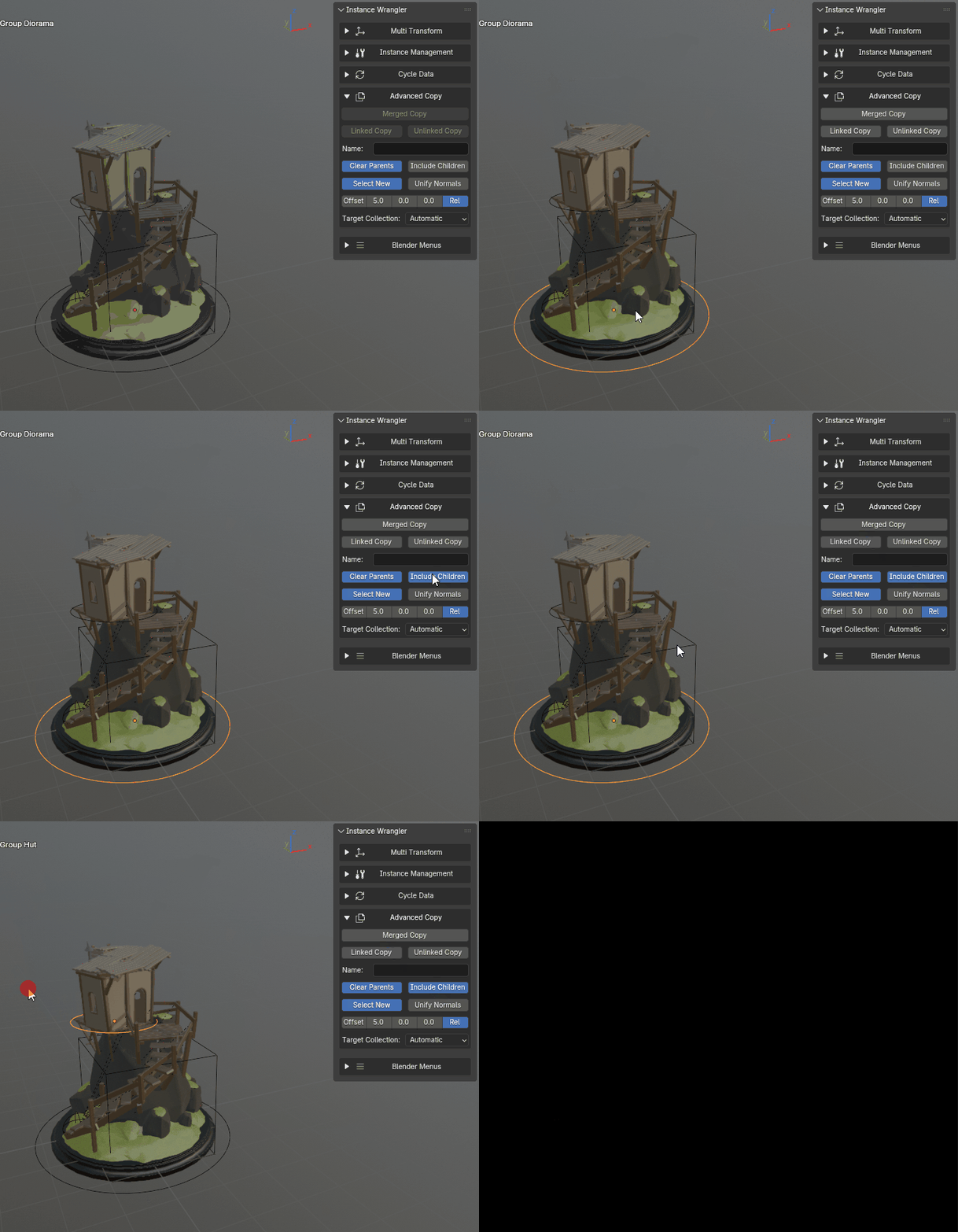
Include children makes it very easy to duplicate hierarchies.
Clear Parents
This toggle controls how parent-child relationships are handled for the newly created objects. It behaves differently for each operator.
- For Merged Copy:
ON (Default): The final merged object will have no parent.
OFF: The operator will attempt to re-parent the final merged object to the parent of the original selection (e.g., the parent of the original active object, or a parent common to all selected objects).
- For Linked Copy & Unlinked Copy:
ON (Default): The new duplicates are unparented from each other, creating a ‘flat’ selection of new instances.
OFF: The original parent-child hierarchy is preserved in the duplicated set.
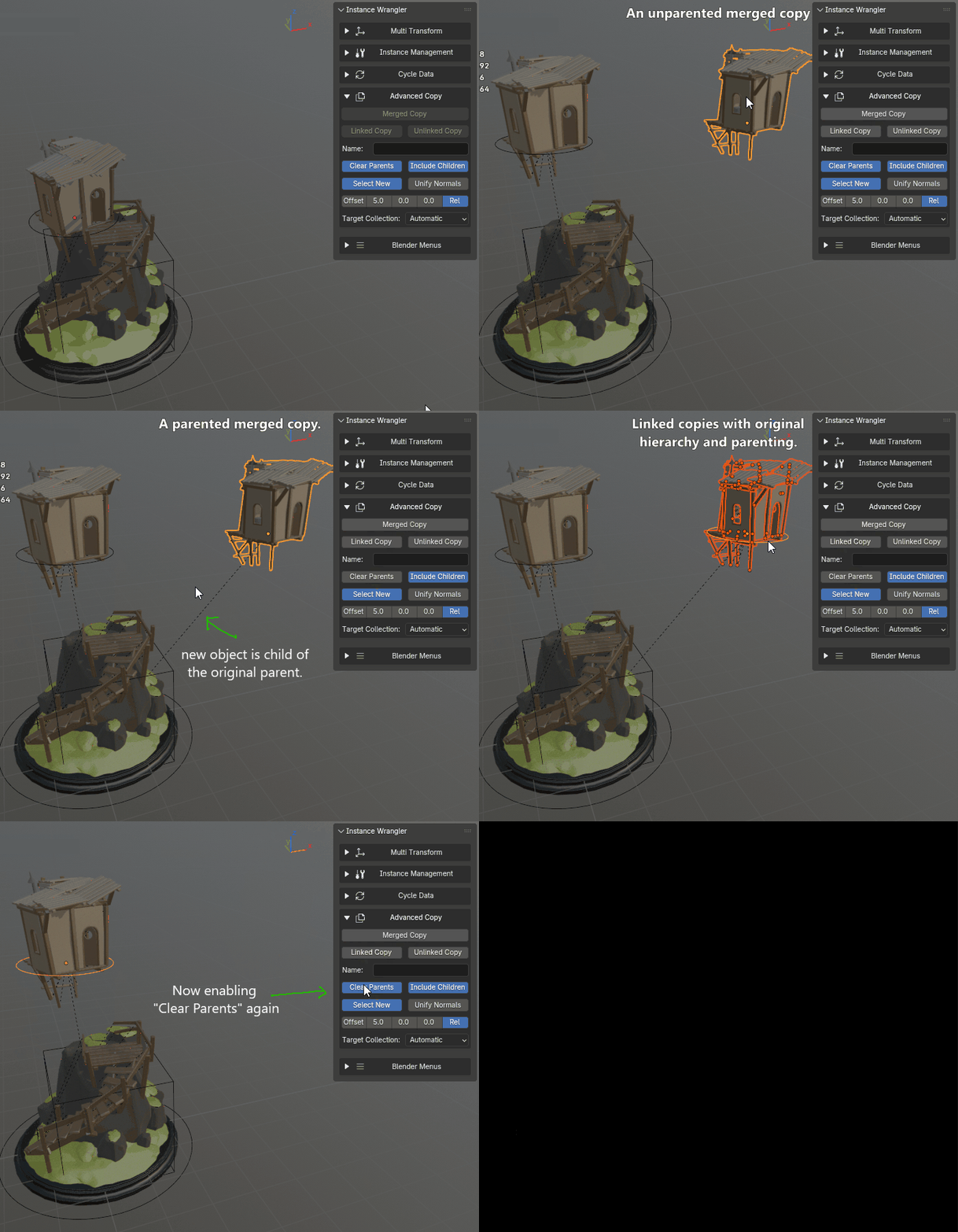
Toggling clear parents will either flatten or maintain a hierarchical structure on new copies.
Select New
This toggle controls the final selection state after the operation is complete.
ON (Default): The newly created object(s) will be selected.
OFF: The original selection will be restored.
Unify Normals
This only works for merged copies. When enabled, the operator will recalculate the normals of the final mesh to all point outwards. This is useful for cleaning up geometry before export. Be sure to doublecheck your results because blenders “calculate outside” functionality is not entirely intuitively reliable.
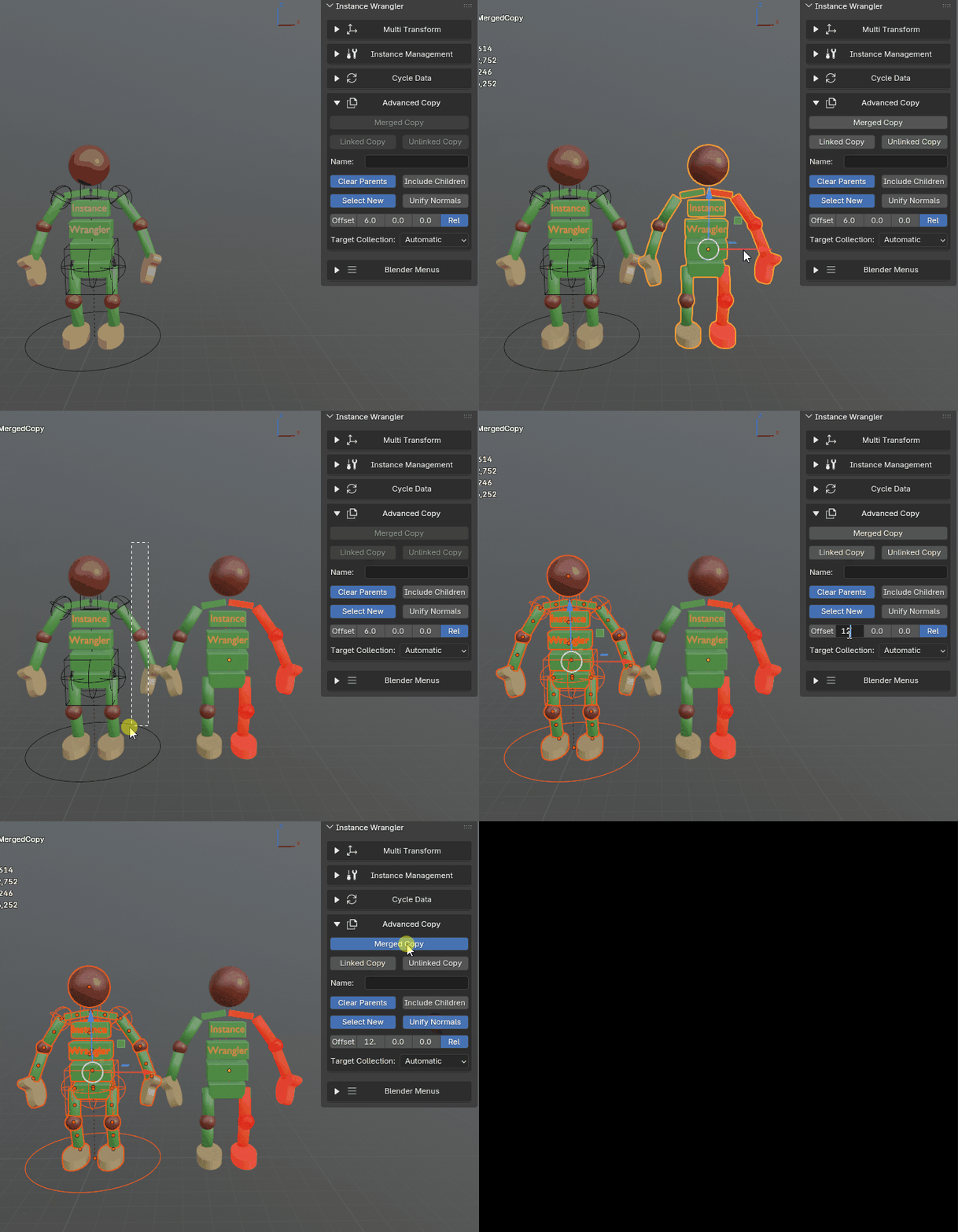
Normals are recalculated to point outwards.
Name
This field controls the name of the newly created object(s).
- For Merged Copy:
If the field is empty or contains only spaces, the new object will be named “MergedCopy”.
Any other text will be used as the exact name for the new object and its data-block.
- For Linked Copy & Unlinked Copy:
Empty (default): The new objects will receive default names from Blender (e.g.,
Cube.001).Any text: This text will be used as the base name for all new objects. Blender will append a number (e.g.,
MyObject.001,MyObject.002) to ensure a unique name for each.Using a wildcard (*): Use an asterisk (
*) as a placeholder for the original object’s name. For example, renaming an object namedCubewith the stringProp_*_LOD0would result inProp_Cube_LOD0.
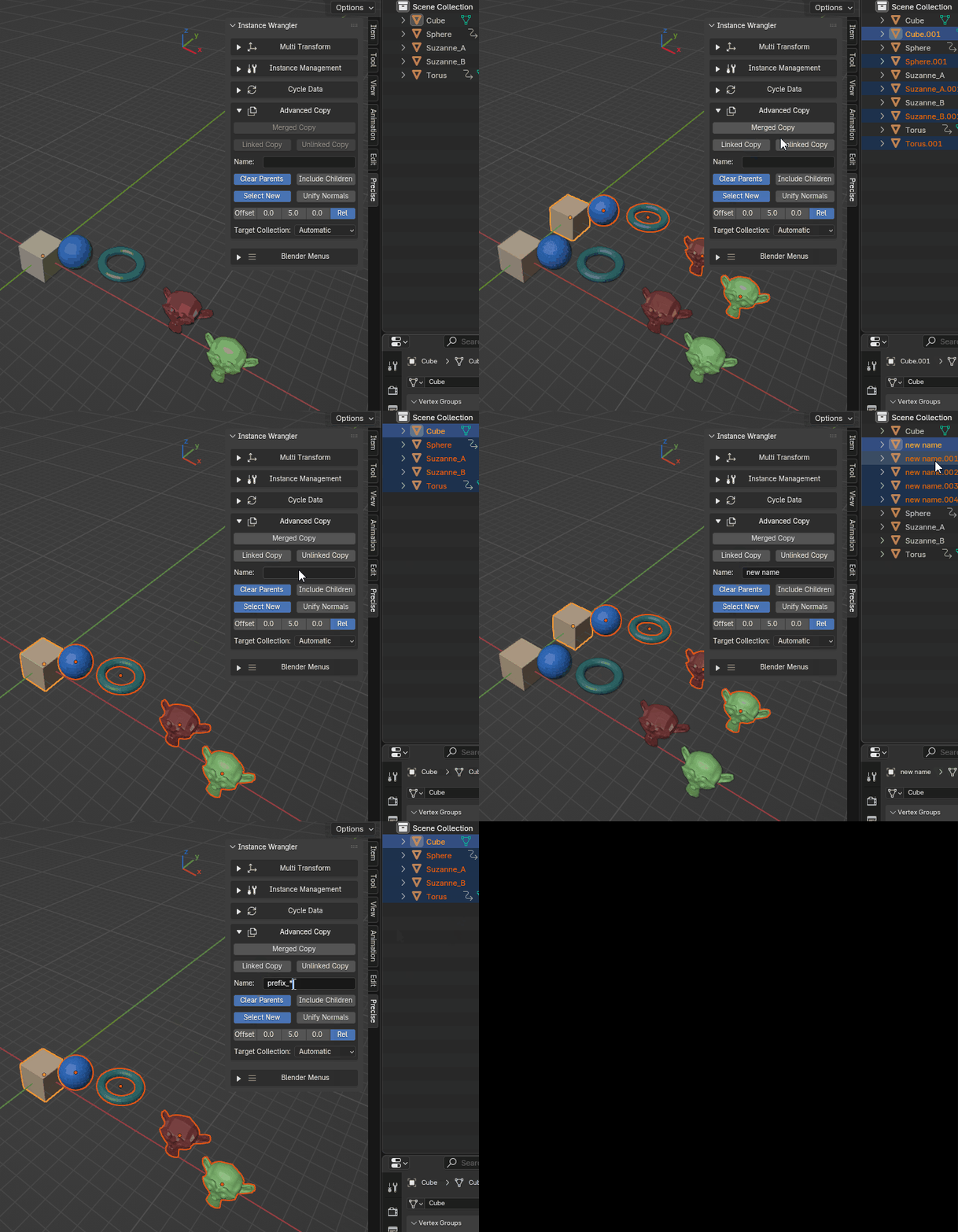
Different ways of setting the name of the newly copied objects.
Target Collection
This dropdown menu controls which collection the newly created object(s) will be placed in.
- Automatic (Default): The operator intelligently determines the most logical collection based on your original selection. The behavior differs for each operator:
- For Merged Copy, the new, single mesh is placed according to the following priority:
It is placed in the collection of the original active object (if one was validly selected).
If there was no valid active object, it is placed in the Scene Collection (the root of the outliner).
For Linked Copy and Unlinked Copy, each new duplicate is placed into the same collection(s) as its original counterpart. This preserves your scene’s organization.
Explicit Choice: You can select any collection in the scene (including the root Scene Collection) to force all new objects into that specific collection, overriding the automatic behavior.
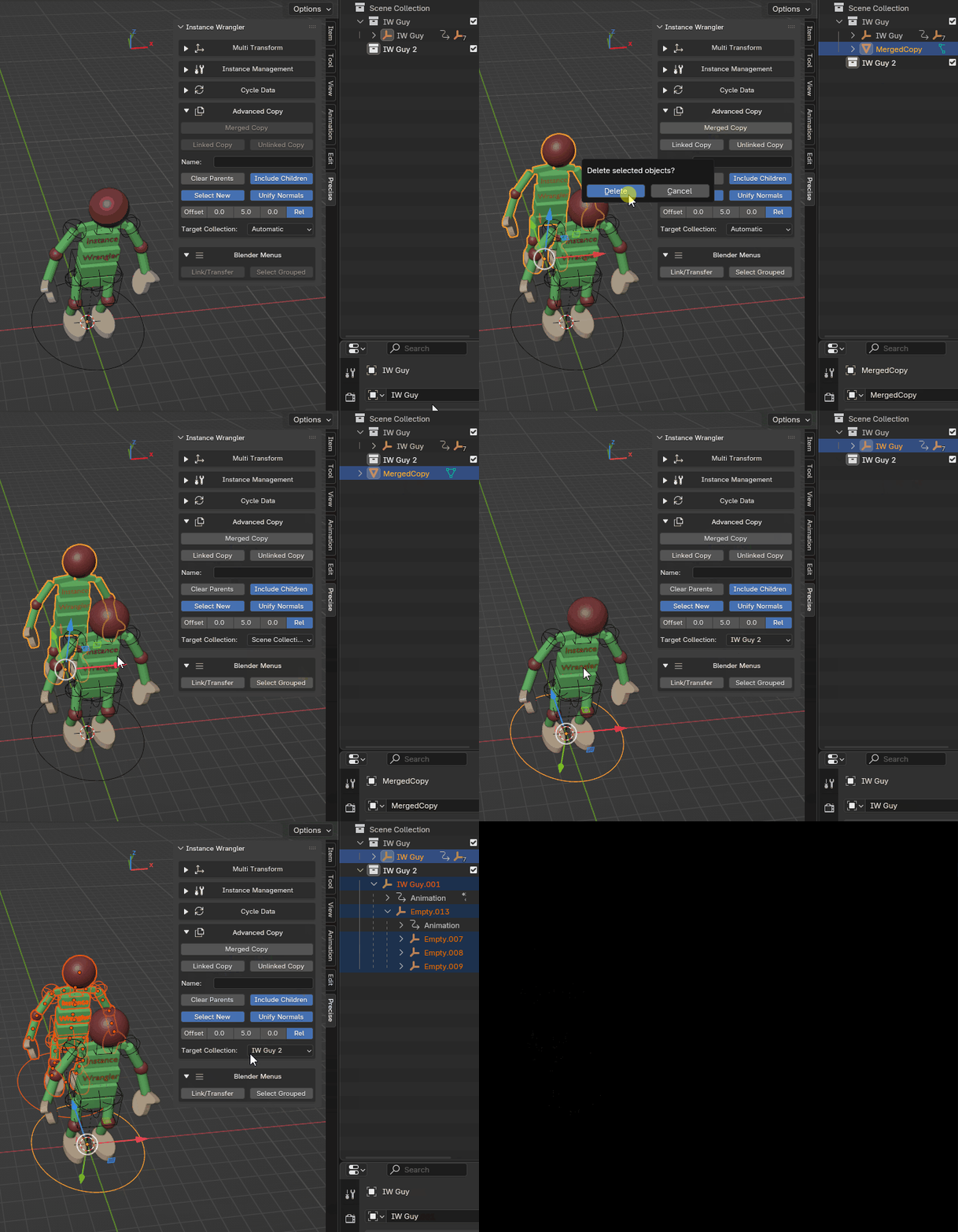
You can target collections for the new copies or handle it automatically in a reliable way.