Copy Name (Object ↔ Data)
These two buttons are powerful utilities for managing the names of your objects and their associated Object Data. In scenes with many linked duplicates, keeping names consistent is crucial for organization. These tools allow you to quickly enforce a clear naming convention across entire instance groups.
← Object: This copies the name of the object’s data-block to the object itself. This is used to propagate or “sync” that master name across multiple selected instances.
→ Data-Block: This copies the name of the selected object to its underlying data-block. This is useful for establishing the “master” name for an entire set of instances.
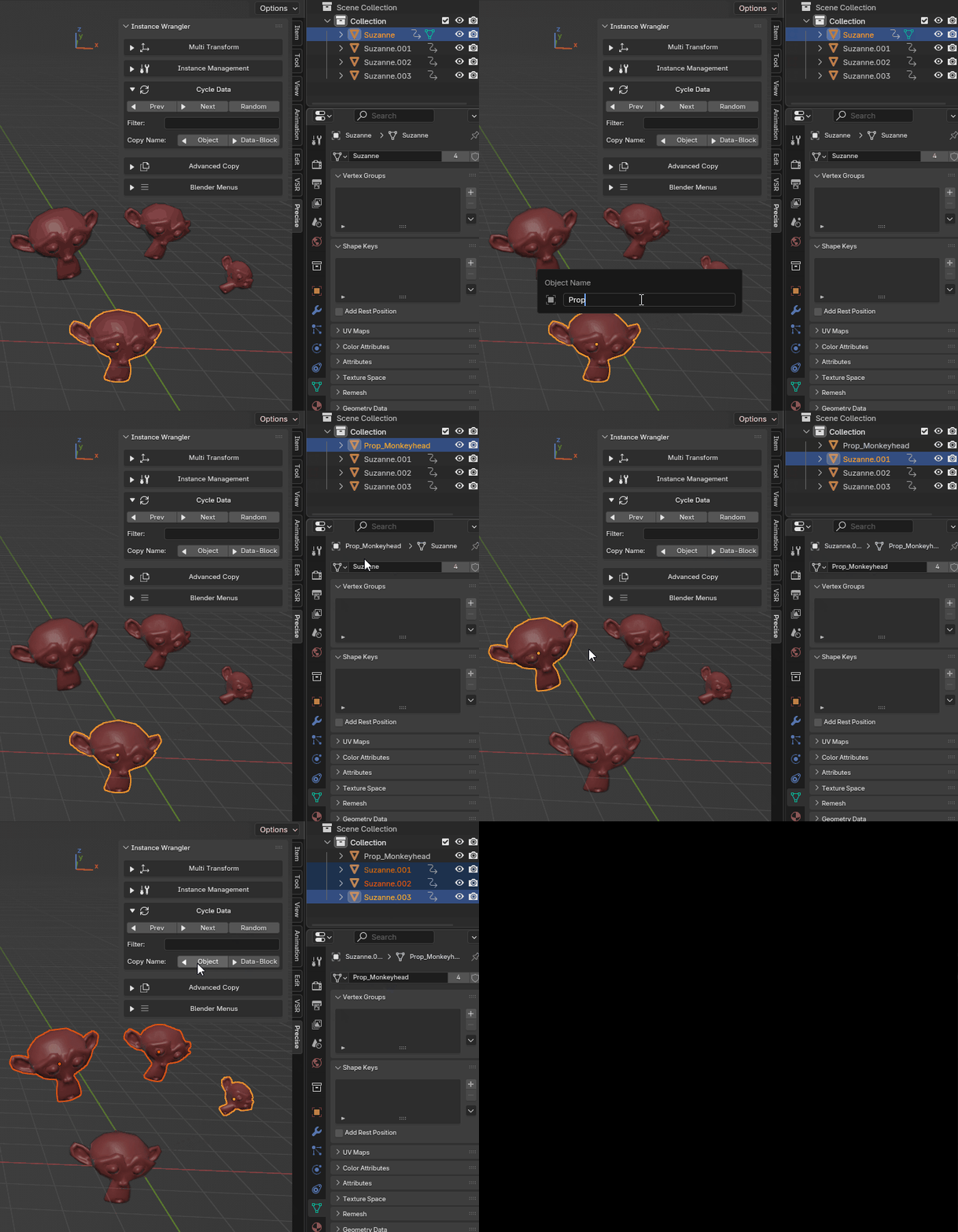
Using Copy Name to sync names of objects and data blocks across multiple instances.
Workflow: Consistent Naming for Instances
This workflow is perfect for cleaning up a scene where you’ve placed many instances without worrying about their names.
Let’s say you have dozens of linked rocks named Sphere.001, Sphere.034, etc., and you want to rename them all consistently.
Step 1: Set the Source Name Find one representative instance and give it a clear, descriptive name in the Outliner, for example, ``Rock_Large_01``.
Step 2: Copy Name to Data-Block With only that one renamed object selected, click the → Data-Block button. The shared data-block for all the rock instances is now also named ``Rock_Large_01``.
Step 3: Select All Instances Now, select all the rock instances that need renaming. You can do this quickly by selecting your source rock and using the Select Linked tool.
Step 4: Sync Name to Objects With all the instances selected, click the ← Object button. Every selected object’s name will instantly be updated to match the data-block’s name.
In just a few clicks, you have synced the names of all your instances, creating a much cleaner and more organized scene.
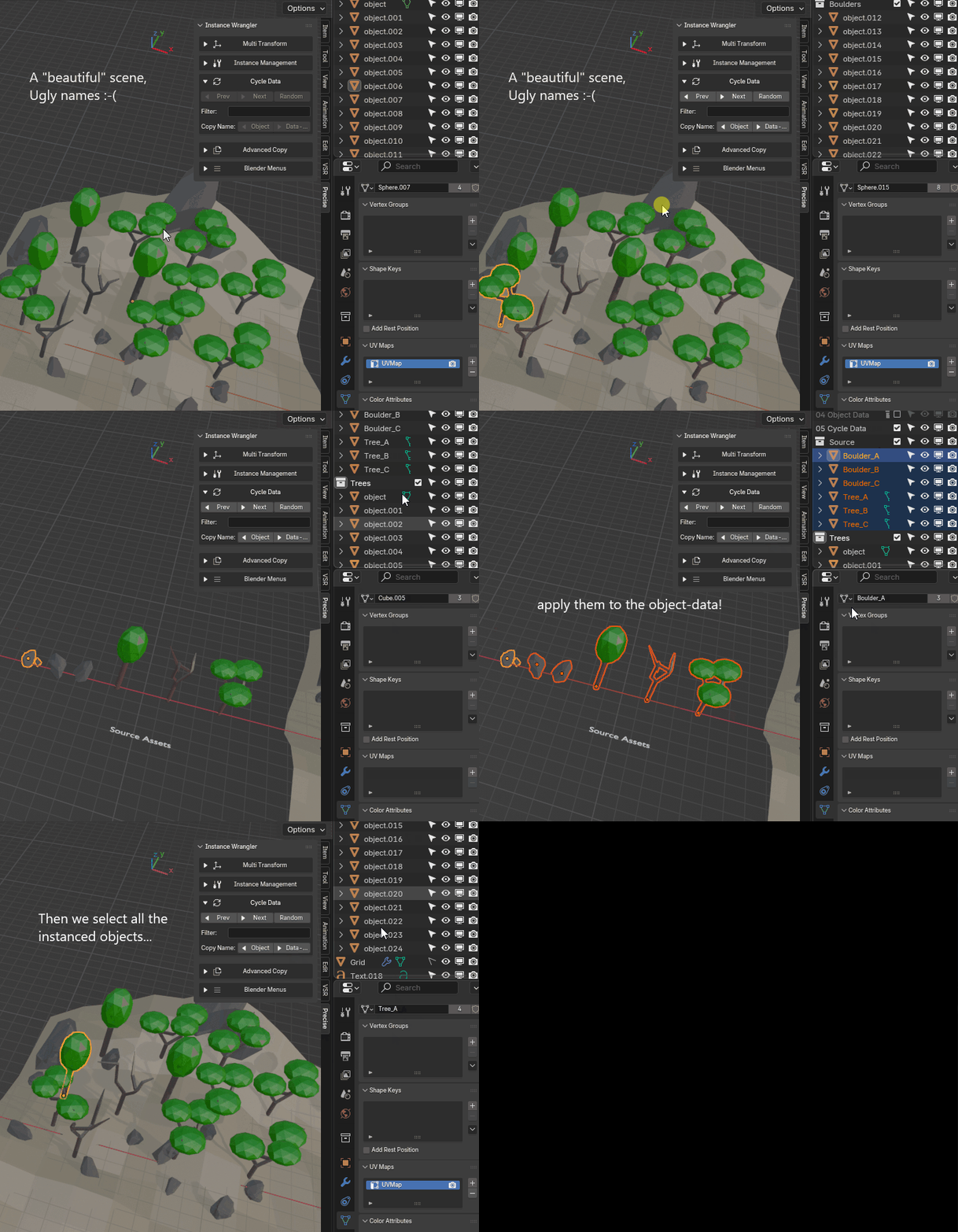
Demonstrating a scenario similar to what is described in the workflow example above.